
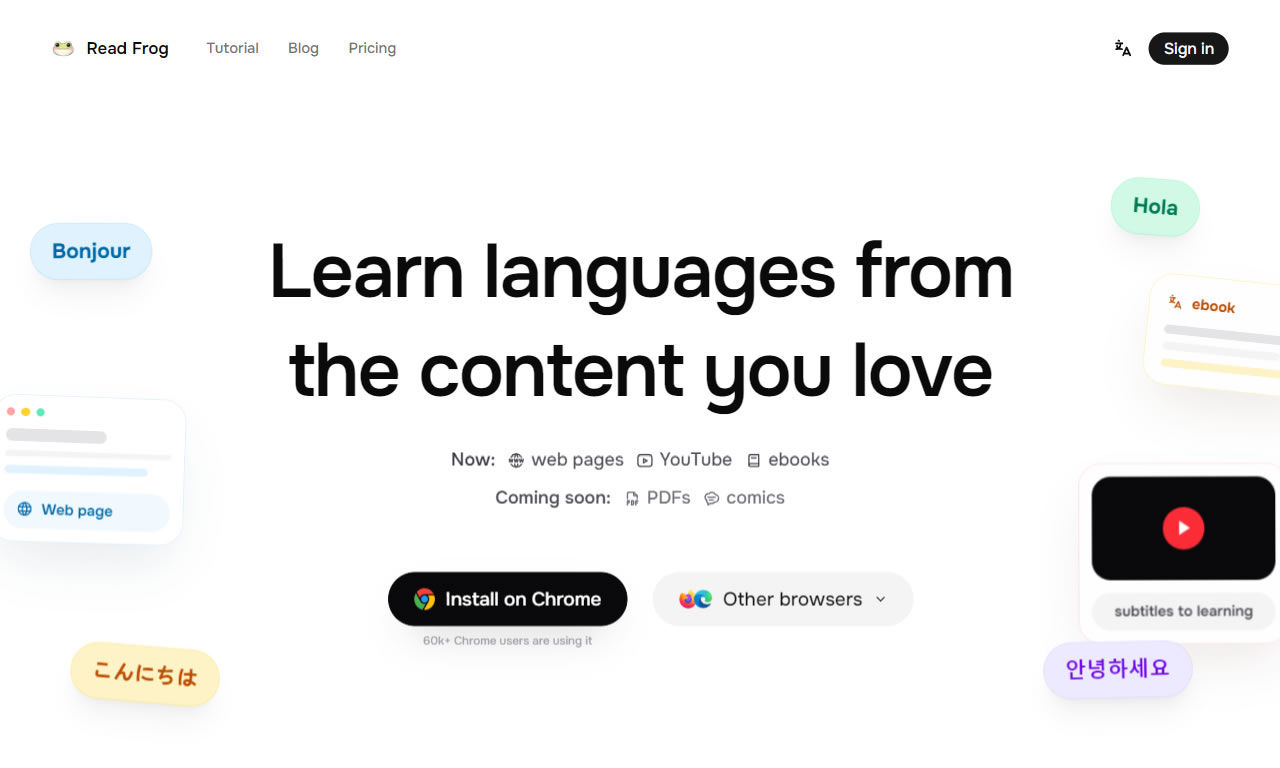
Readfrog is a free, open-source browser extension that supports major browsers and offers practical features like bilingual webpage translation and YouTube subtitle translation. Users can freely use traditional machine translation services like Google and Microsoft, or connect to various AI services such as Gemini, DeepSeek, and OpenAI.
What is Readfrog?
The tool I'm recommending in this article, "Readfrog", is a free browser extension. It supports Chrome, Edge, and Firefox, and is currently the most recommended open-source project to replace Immersive Translate. It can quickly translate web pages, YouTube video subtitles, input text, or perform text-to-speech. With its floating button, toolbar, or right-click menu, it's perfect for students, researchers, or international professionals.
If you frequently browse foreign websites, Readfrog will come in handy. It's more user-friendly and provides more accurate, readable translations than built-in browser tools. Especially if you've used Immersive Translate before, you'll notice the designs are quite similar.
Features and Benefits of Readfrog
Readfrog is an AI-powered translator that can connect to over 20 AI providers (including OpenAI, Gemini, DeepSeek, Anthropic Claude, xAI Grok, and more). If you prefer not to deal with complex setups, you can also directly choose standard machine translation tools like the free basic options from Google Translate, Microsoft Translator, and DeepLX.
In a nutshell, the main advantage of Readfrog is that it "allows original text and translations to be displayed in an interleaved format", which helps with comprehension by letting you compare the original text as you read. Furthermore, connecting to AI tools for translation significantly improves the quality. If you're tired of the output from machine translation or want to try using AI for your translation tasks, you should install the Readfrog extension. It's completely free and highly recommended for all readers.
Website Info
Website Name: Readfrog
Website Link: https://www.readfrog.app
How to Use It
Download and Install the Extension
Readfrog offers extensions for Chrome, Edge, and Firefox.
Simply visit the respective web store to install it on your browser.
Initial Native Language Setup and Basic Navigation
Like Immersive Translate, Readfrog has a setup process after installation. The first step is to set your native language.
Then, follow the on-screen instructions to translate a webpage using the Readfrog extension button in your browser's top-right corner. This serves as a quick tutorial.
Finally, it will show that the basic setup for Readfrog is complete. Click "Finish" to end the tutorial. For more details, you can refer to the advanced manual.
Select Translation Mode and Service
Readfrog is very simple to use. Just click the icon in the top-right corner of your browser to start translating, like most translation tools.
Before translating, you can pre-select the translation mode and service. It supports AI translation (with OpenAI, DeepSeek, Tensdaq, and Gemini available by default). If you don't want to pay for translation, you can also choose free tools like Google Translate, Microsoft Translator, and DeepLX.
From Readfrog's options, you can also pre-configure settings for webpage translation, video subtitle translation, selected text translation, input translation, or the Dictionary function.
Connect Your Own AI API Keys and Adjust Styles
To use AI translation, first select "API Providers" from the left-hand menu. You'll see various AI services. Follow the instructions on the page to enter your API Key to complete the setup (click the "How to set up?" link in the top-right corner to go to the corresponding page).
After setup, go back to the previous "Function Provider" settings and assign the corresponding translation function to the AI translation service.
If you want to adjust the display style of the translation, you can find the options in Readfrog's "Translation" settings. However, I find the default style quite good; the text color and spacing don't interfere with reading and are distinct from the original text.
As for the floating button, toolbar, or right-click menu that appears on the right side of the browser, if you find them visually distracting, you can disable or turn them off in the "Floating Tools" options. I prefer to just click the function button in the top-right corner to translate. I also keep the right-click menu translation function. You can adjust these according to your own habits.
Example of Webpage Bilingual Translation
Here is an example of using Readfrog for translation. You can see that the translation is displayed below the original text, in segments, allowing you to refer to the original at any time while reading. Compared to translating all content into a single language, this presentation is much better for reading and saves you from constantly switching between the original and translated text.
Bilingual Translation for YouTube Subtitles
Another highly recommended feature is that Readfrog also supports YouTube subtitle translation, and similarly, the translation is displayed above the original text. This is very useful for users who watch foreign videos. It's simple to operate: after installing the extension, a "Readfrog" button will appear in the bottom-right corner of the YouTube video player. Click it to turn on the subtitle translation function. It also has features to download translated or original subtitles.

What's up, I desire to subscribe for this web site to take hottest updates, therefore where can i do it please help out.
Thank you for your interest! Right now, the best way to get our hottest updates is through our RSS Feed. You can subscribe directly here: https://opennetresources.com/feed/