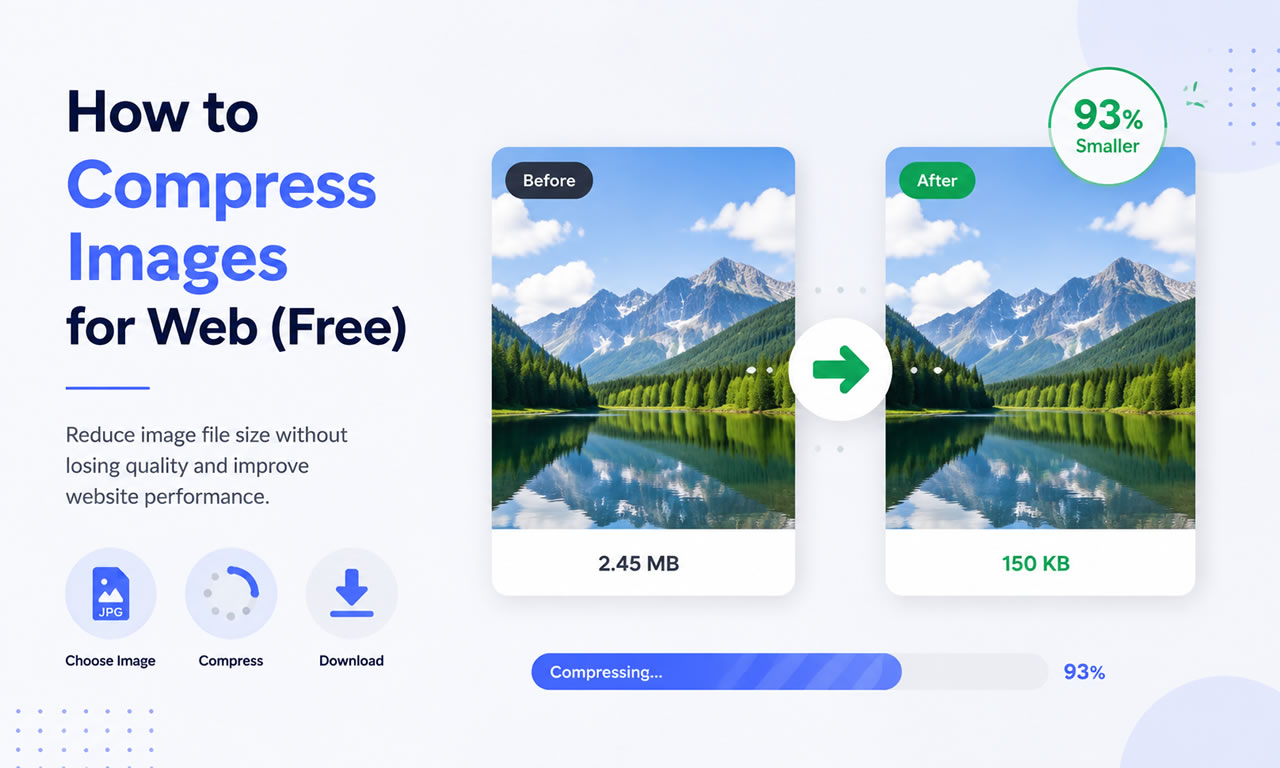
Page speed is a massive SEO ranking factor. One of the biggest culprits of a slow website is unoptimized images. If you are regularly downloading high-resolution files from the best free stock photo sites, you absolutely must compress them before uploading them to your server.
How to Compress Images for Web Without Losing Quality (Free Tools)
Why You Need to Compress Images
Large image files (anything over 300KB) consume your hosting bandwidth, slow down page rendering, and frustrate mobile users on cellular networks. By compressing images using smart algorithms, you can reduce file sizes by up to 80% with zero visible loss in quality.
Top Free Image Compression Tools
1. TinyPNG / TinyJPG
Don't let the name fool you; this browser-based tool supports WebP and PNG/JPEG formats. TinyPNG uses smart lossy compression techniques to reduce the number of colors in the image, meaning fewer bytes are required to store the data. The effect is nearly invisible, but it makes a huge difference in file size.
2. Squoosh by Google
Squoosh is a free, powerful web app created by Google. It allows you to dive deep into advanced compression settings. You get a real-time slider to compare the original image with the compressed version side-by-side, ensuring you never sacrifice visual quality while trying to hit specific file size targets.
3. Kraken.io (Free Web Interface)
Kraken offers a robust free web interface that allows you to optimize photos in bulk. You can choose between "Lossless" (no quality change at all) and "Lossy" (massive size reduction with minor quality tweaks). It’s highly reliable and very fast.
4. ImageOptim (For Mac Users)
If you prefer a desktop app and use a Mac, ImageOptim is an essential free tool. You simply drag and drop folders of images into the app, and it automatically strips out unnecessary metadata (like GPS coordinates and camera models) and applies lossless compression.
Step-by-Step Compression Workflow for Webmasters
Resize First: Never upload a 4000px wide image if your website container is only 1200px wide. Resize the physical dimensions first.
Run the Compression: Drag the resized image into TinyPNG or Squoosh.
Use Next-Gen Formats: Convert your standard JPEGs to WebP format, which provides superior compression for modern browsers.
Upload: Upload the optimized file to your WordPress media library and enjoy the speed boost!
There are now many web-based audio and video processing tools built with browser-side technology, offering the convenience of online tools while ensuring privacy and security. This article introduces SoundTools, an online audio processing platform with 35 tools. It features basic audio editing functions like trimming and tempo changing, as well as AI tools for music vocal removal and text-to-speech. The interface is clean and simple, and the site is currently free of intrusive ads.
The main feature of SoundTools is that it runs 100% in your browser. When you upload and process audio, your files are never sent to any external servers. All functions are completely free, require no registration, and have no hidden fees or limits. It meets various audio processing needs and is ready to use the moment you open the webpage.
SoundTools Main Tools
Voice Cloning: Provide a 10-second voice sample to clone the voice and have it read any text.
Stem Splitter: Automatically separates a song into vocal, drums, bass, and other instrument tracks.
Speech to Text: Supports multiple languages, transcribing audio from meetings, lectures, podcasts, etc., into transcripts or SRT subtitles.
Text to Speech: Enter text, choose from various natural AI voices, and export directly to MP3 or WAV format.
Voice Changer: Offers 17+ effects, including chipmunk, robot, demon, and anime.
Audio Effects: Adjust audio speed, add reverb, create surround sound, boost bass, increase volume, and more.
Edit & Convert: Features audio trimming/merging, format conversion, and video to audio extraction.
Other Tools: Includes BPM and key detection, a hearing test, a granular synthesizer, and a music visualizer.
1. Open the SoundTools website. The homepage displays a list of tools with brief descriptions. You can also click "Tools" at the top of the page to go to the tools page.
2. All of SoundTools' audio tools are free to use and run locally on your device. For example, when you enter the Free AI Vocal Remover page, you'll see it's 100% free and that your files never leave your device. Each tool has a description of its purpose and functions.
3. To use the AI Vocal Remover tool, first click the "dashed box" to select your audio file, then click "Remove Vocals" to start processing. The page also explains that processing speed will vary depending on your CPU or GPU.
4. The vocal removal process will begin, and the page will first show the progress of downloading the AI model.
5. Once the AI model is ready, the page will display the separation progress and the estimated remaining time.
6. After processing is complete, it will provide two separate audio files: Instrumental and Vocals Only, available in both WAV and MP3 formats. Click the button to save the files.
Warm Reminder:
Since SoundTools is a web tool that runs locally, processing speed depends on your device's performance. Using a device with a graphics card (GPU) and a WebGPU-supported browser (like Chrome or Edge) will result in faster processing. This is especially noticeable for tools that need to download additional AI models or FFmpeg.wasm, where the difference with and without hardware acceleration is significant.
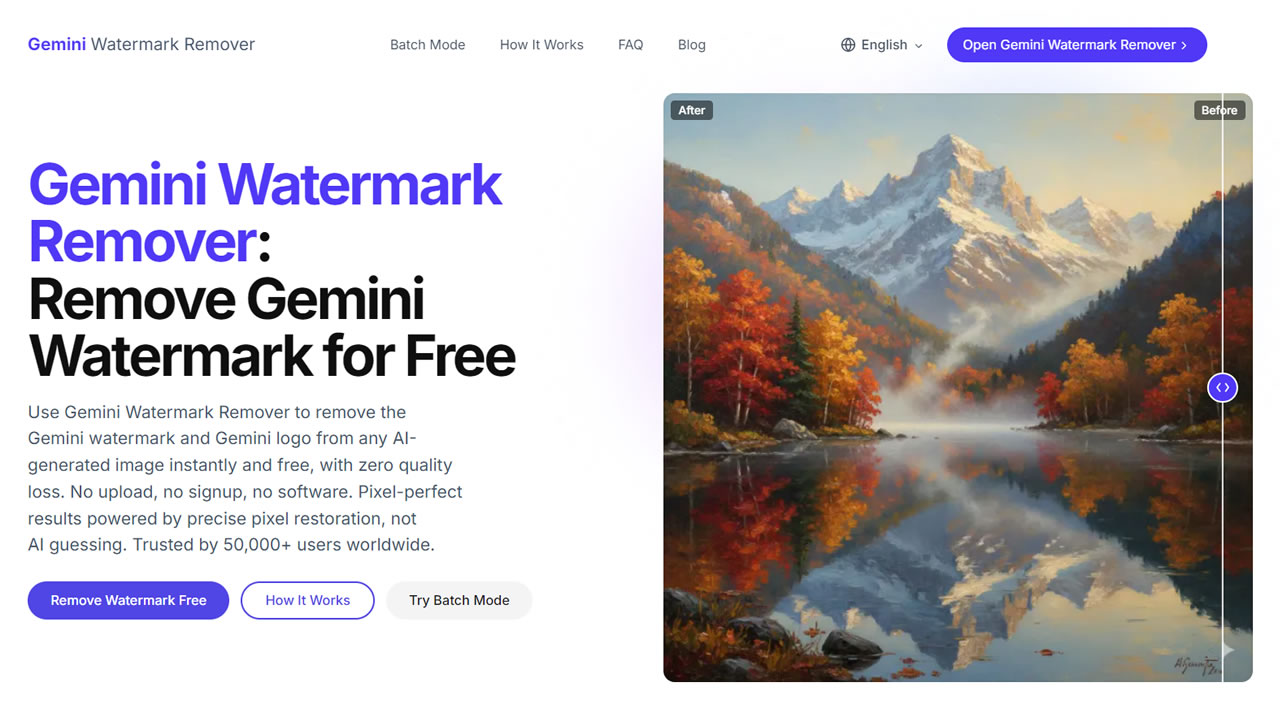
When generating images with Gemini AI, a Gemini watermark and logo appear in the bottom right corner to identify the image as AI-generated or edited. However, in many scenarios (such as for professional use), you may want to remove this small, semi-transparent star icon to make the image look more natural. But is there any way to remove the Gemini watermark without leaving any traces?
Gemini Watermark Remover: Remove Gemini Watermark for Free
Professional Watermark Removal with No Smudging
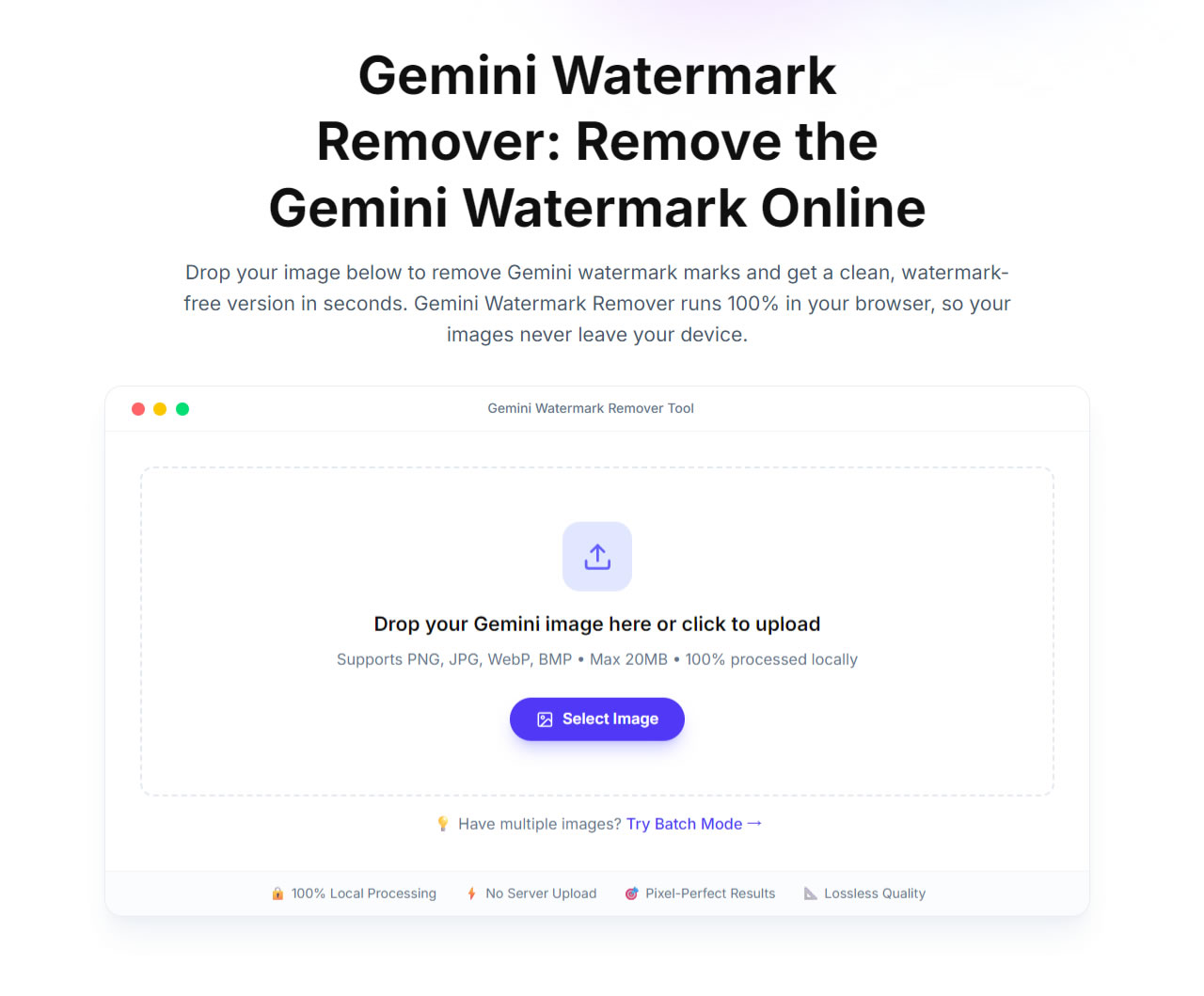
This article introduces the Gemini Watermark Remover, a free tool designed to remove AI logos and watermarks. All processing is done 100% in your browser, meaning your images never leave your device. It supports formats like PNG, JPG, WebP, and BMP, with a maximum file size of 20 MB, which easily meets the needs of most users.
The Gemini Watermark Remover accurately identifies the watermark area and restores the original pixels beneath it, making the result look identical to a clean, unwatermarked image. This tool does not use the traditional "smearing" or "blurring" method, so you don't have to worry about losing image quality during editing. Once processed, it displays a before-and-after comparison. You can simply drag the slider to compare the two versions and download the clean, watermark-free image.
After opening the Gemini Watermark Remover, scroll down to find the image selection area. You can drag and drop your image directly onto the webpage, or click the "Select Image" button to choose the file you want to edit. The entire process happens locally in your browser; files are never uploaded to any server. The maximum file size limit is 20 MB.
Gemini Watermark Remover: Remove the Gemini Watermark Online
Instant Comparison and Download
Another standout feature is the lightning-fast processing speed. According to the site, it takes only 50 milliseconds to remove the watermark, making it significantly faster than most online tools or browser extensions.
Once finished, the tool displays a side-by-side comparison of the original and processed images, allowing you to quickly check the differences. Simply click the "Download Clean Image" button to save your watermark-free version.
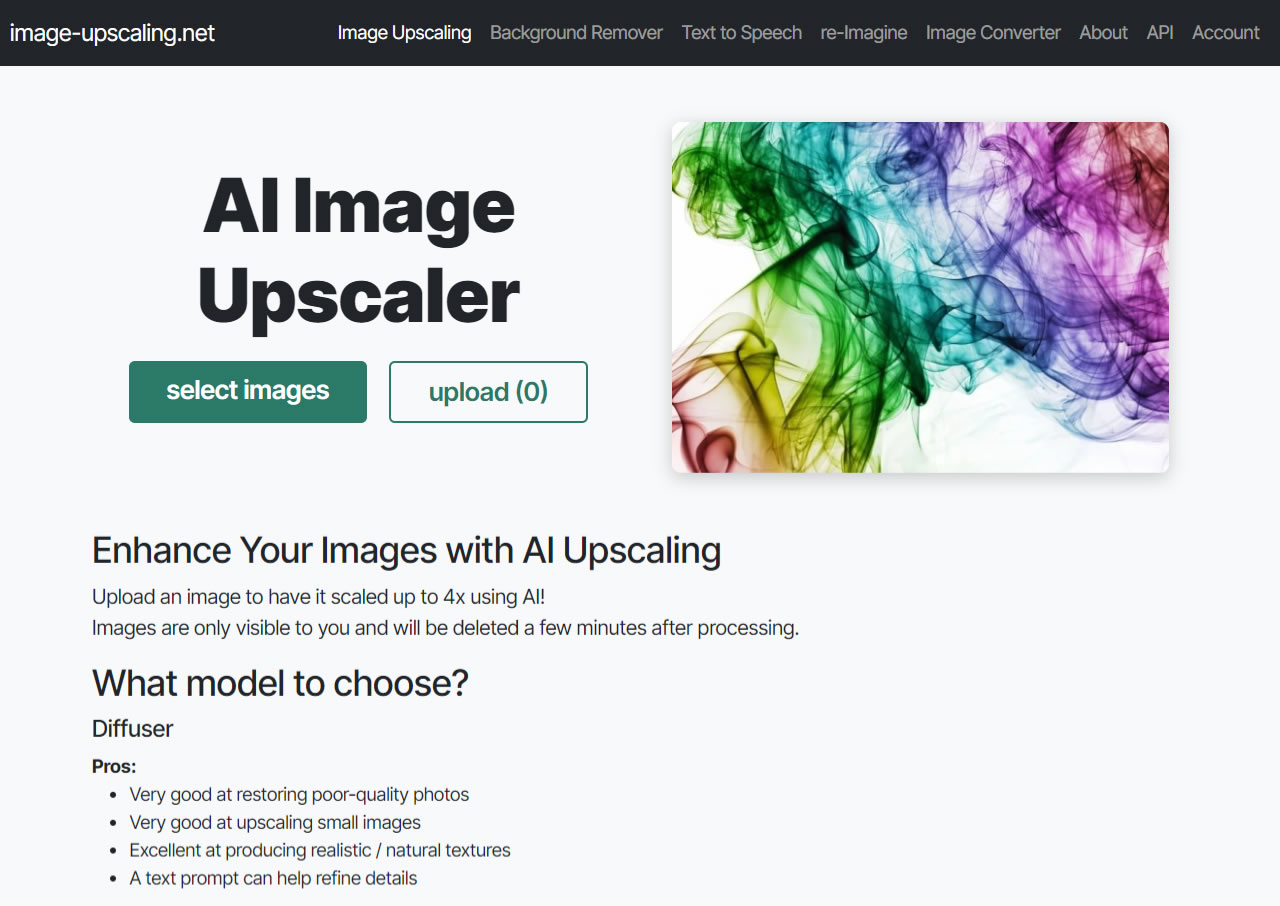
Today, I want to introduce you to Image-Upscaling, a powerful free AI image upscaler that can enlarge your photos by up to 4x using advanced AI technology. As we know, simply resizing raster images usually results in distortion and blurriness. However, this tool uses sophisticated processing to redraw your images in seconds, increasing their size while maintaining high resolution. It’s particularly effective at sharpening low-resolution photos and enhancing clarity. Best of all, you don't need to download or install any software—everything is done right in your browser.
Free AI Image Upscaler: Enhance Resolution up to 4x
Support for Multiple Formats and Batch Processing
Image-Upscaling handles various image types, including paintings, AI art, anime, and everyday photos. It supports common formats like PNG, JPG, and WebP and can upscale images up to a resolution of 4096*4096. The tool also excels at restoring low-res photos and fixing blurry faces. A standout feature is its ability to process images in batches, allowing you to upscale multiple files at once and download them as a single package.
According to the website, the service is completely free for small-scale use with no paywall and no sign-up required, though there is a daily free quota.
Beyond upscaling, the Image-Upscaling website offers a suite of other free tools, including an online background remover, a text-to-speech converter, a "re-Imagine" feature for style transfer, and an image format converter. While the interface is more minimalist compared to other services, the results are impressive, delivering high-quality edits without complicated settings.
When you open the Image-Upscaling website, the AI image upscaler is the default tool. Simply click "Select Images" to choose the files you want to enhance.
Next, you'll see a preview of your image along with options to choose an AI model, set the upscale factor, and adjust the "Creative hallucination" setting. In short, this feature boosts the AI's creativity to improve image quality, detail, and resolution. However, setting it too high might introduce significant deviations and make the image look unnatural.
If you're working with severely blurry or noisy images, moderately increasing the "Creative hallucination" strength can be very helpful for restoration.
Image-Upscaling provides four different AI models (Diffuser, Diffuser-lite, General, and Plus), each with unique characteristics. Here is a quick summary:
Feature
Diffuser
Plus
General
Core Strength
Restores very poor quality; natural, realistic results
Optimized for art & drawings; supports transparent backgrounds
Ultra-large output (up to 16K)
Resolution Limit
6MP (4MP for Diffuser-lite)
32MP
256MP (16K)
Best For
Restoring damaged old photos, high-noise images
Illustrations, digital art, cutout materials
Large posters, ultra-high-res artwork
Processing Speed
Slower
Fast
Fast
Cost
Higher
Cheaper
Cheaper
Transparency
Not supported
Supported
Supported
After selecting your model and any corresponding options, click "Upload" to start the cloud processing.
Wait for Processing and Download
This process takes a little time. Image-Upscaling doesn't provide many progress updates, so just keep the tab open. The page will refresh automatically once it's done.
Finally, click the "Download All (zip)" button to get all your images in a single compressed file. Note that the images are automatically deleted after one hour, so there's no need to clean up manually. According to the site, your images are uploaded to a server in Germany and are used solely for short-term processing and storage.
Use AI Background Remover for Automatic Cutouts
Another great tool is the "AI Background Remover." You can switch to it from the top menu. The process is just as simple: click "Select Images," choose your files, and hit "Upload." The entire background removal process is automated with no settings to adjust.
Once finished, you can click to save the image with the background removed. Keep in mind that results can vary, so it's always good to test it with your own photos.
Batch Image Conversion and Quality Adjustment
Lastly, there's the Batch Image Converter. This tool lets you convert images to PNG, JPEG, or WebP formats and even adjust the quality for JPEG and WebP outputs. A special feature of this converter is that it supports most image formats (like JPG, PNG, GIF, BMP, etc.) and performs all conversions locally in your browser, so your files never leave your device.
Conclusion
While new AI image tools pop up all the time, Image-Upscaling stands out. Although its interface is a bit plain, its feature set is surprisingly comprehensive!
In my tests, the upscaling function handled low-resolution photos very naturally, and the "Creative hallucination" parameter offers a lot of flexibility. The ability to process and download multiple images at once without needing to sign up or register is a huge time-saver. For anyone who needs to quickly improve the quality of their image assets, this is a highly capable and efficient free tool.