Understanding AI and ChatGPT
What is AI and how does it work?
AI stands for Artificial Intelligence, which is a broad term referring to the development of computer systems that can perform tasks that historically required human intelligence. AI can involve various techniques, such as machine learning and natural language processing.
ChatGPT is a specific instance of AI that uses a technique called deep learning. It’s designed to generate human-like text responses. ChatGPT learns through a two-step process: pretraining and fine-tuning.
During the pretraining phase, ChatGPT is exposed to a massive amount of text data from the internet. The model learns to predict what the next word in a sentence or paragraph is based on the context of the preceding text. It uses a technique called unsupervised learning, where it doesn't have explicit labels for the correct answers. Through this process, ChatGPT learns grammar, facts, reasoning abilities, and gains a broad understanding of language.
After pretraining, the model goes through a fine-tuning stage using a more specific dataset.
The fine-tuning data involves demonstrations and comparisons. Human AI trainers provide conversations where they play both the user and an AI assistant and have access to
model-written suggestions. They also rank different responses based on quality. The model is then
fine-tuned using this data to improve its responses and align with the desired behavior
This process helps ChatGPT develop a contextual understanding of language, allowing it to generate more relevant and coherent responses during conversations. It learns from the patterns and examples it has seen in the data and tries to generalize that knowledge to provide useful responses in real-world scenarios.
During a chat conversation, ChatGPT takes in your input message, tokenizes it, and produces a response based on patterns it has learned. It aims to generate relevant and coherent responses based on the context of the conversation history. The model learns from large amounts of data to better understand language and generate more accurate answers. However, it's important to note that ChatGPT may still produce incorrect or nonsensical answers at times, so caution should be exercised when relying on its responses.
While ChatGPT is an increasingly common use of artificial intelligence, it is not the first time that AI has been adopted by everyday users. Here are a few examples of AI that you’ve likely used before:
1. Virtual Assistants
Virtual assistants like Apple's Siri, Amazon's Alexa, Google Assistant, or Microsoft's Cortana use AI to understand voice commands and perform tasks like setting reminders, answering questions, or controlling smart home devices.
2. Recommendation Systems
Recommendation systems, used by platforms like Netflix, Spotify, or Amazon, use AI to analyze user preferences, behavior, and historical data to suggest personalized content, products, or services.
3. Image and Speech Recognition
AI enables systems to recognize and interpret images, videos, or speech. This is used in applications like facial recognition, object detection, speech-to-text conversion, voice assistants, and more.
4. Autonomous Vehicles
AI plays a crucial role in autonomous vehicles, allowing them to perceive the environment, make decisions, and navigate safely. It involves technologies like computer vision, sensor fusion, and machine learning algorithms.
5. Fraud Detection
AI is used to identify patterns or anomalies in data that may indicate fraudulent activities. It helps detect fraudulent transactions, cybersecurity threats, or suspicious behavior in real time.
Capabilities and Use Cases of ChatGPT
With its understanding of natural language, ChatGPT is able to comprehend and interpret input in a conversational manner. This, paired with its ease of use and ease of access, makes it a powerful tool that can go far in increasing efficiency and knowledge-building in its users.
ChatGPT maintains context over multiple turns, allowing it to remember and refer back to previous messages for more accurate responses. It excels in answering factual questions, providing explanations, definitions, and assisting with general knowledge inquiries.
There are also different models within the ChatGPT ecosystem, such as GPT-4 Preview and GPT Mini, each tailored to specific use cases.
For instance, GPT-4 Preview is designed for deep, strategic problem-solving and excels at tackling complex, nuanced inquiries that require contextual understanding and advanced reasoning. In contrast, GPT Mini focuses on delivering quick and efficient responses, making it ideal for straightforward tasks or when a lightweight, speedy assistant is needed.
Here are just a few ways that ChatGPT can be used:
- Virtual Assistant: Use ChatGPT as a virtual assistant to set reminders, schedule appointments, manage to-do lists, and answer general queries.
- Personal Concierge: Get personalized recommendations for restaurants, hotels, movies, books, or activities based on your preferences, helping you make informed decisions.
- Language Practice: Engage in conversations with ChatGPT to practice and improve your foreign language speaking and writing skills.
- Creative Writing Companion: Use ChatGPT as a writing companion for brainstorming ideas, overcoming writer's block, or receiving feedback on your writing.
- Information Retrieval: Ask ChatGPT questions, seek explanations, or get quick information on a wide range of topics, similar to searching the web.
- Learning and Education: Receive explanations, definitions, or elaborations on academic subjects, helping with homework or understanding complex concepts.
- Goal Tracking and Motivation: ChatGPT can help you track progress towards your goals, provide motivational prompts, or offer suggestions to stay focused.
- Personal Development: Engage in reflective conversations with ChatGPT to gain insights, explore ideas, and foster personal growth.
- Entertainment and Trivia: Have fun interactive conversations with ChatGPT, play trivia games, get riddles or jokes, or discuss pop culture topics.
- Curiosity and Exploration: Use ChatGPT to explore diverse fields, delve into specific interests, or discover new facts and information.
ChatGPT's capabilities and use cases span customer support, content editing, language learning, personal assistance, programming support, and knowledge exploration, making it a versatile tool for enhancing productivity and efficiency in different areas.
While ChatGPT can be a valuable tool, it's crucial to recognize its limitations. It may not possess domain-specific expertise or completely replace human expertise. It's important to consider factors such as contextual understanding and handling sensitive or confidential information when utilizing AI tools like ChatGPT—especially at work.
That being said, leveraging ChatGPT's capabilities can greatly benefit the workplace. It has the potential to streamline workflows, facilitate collaboration, and provide assistance in various work-related tasks. By harnessing its power, organizations can foster a more efficient and productive work environment.
Using ChatGPT at Work
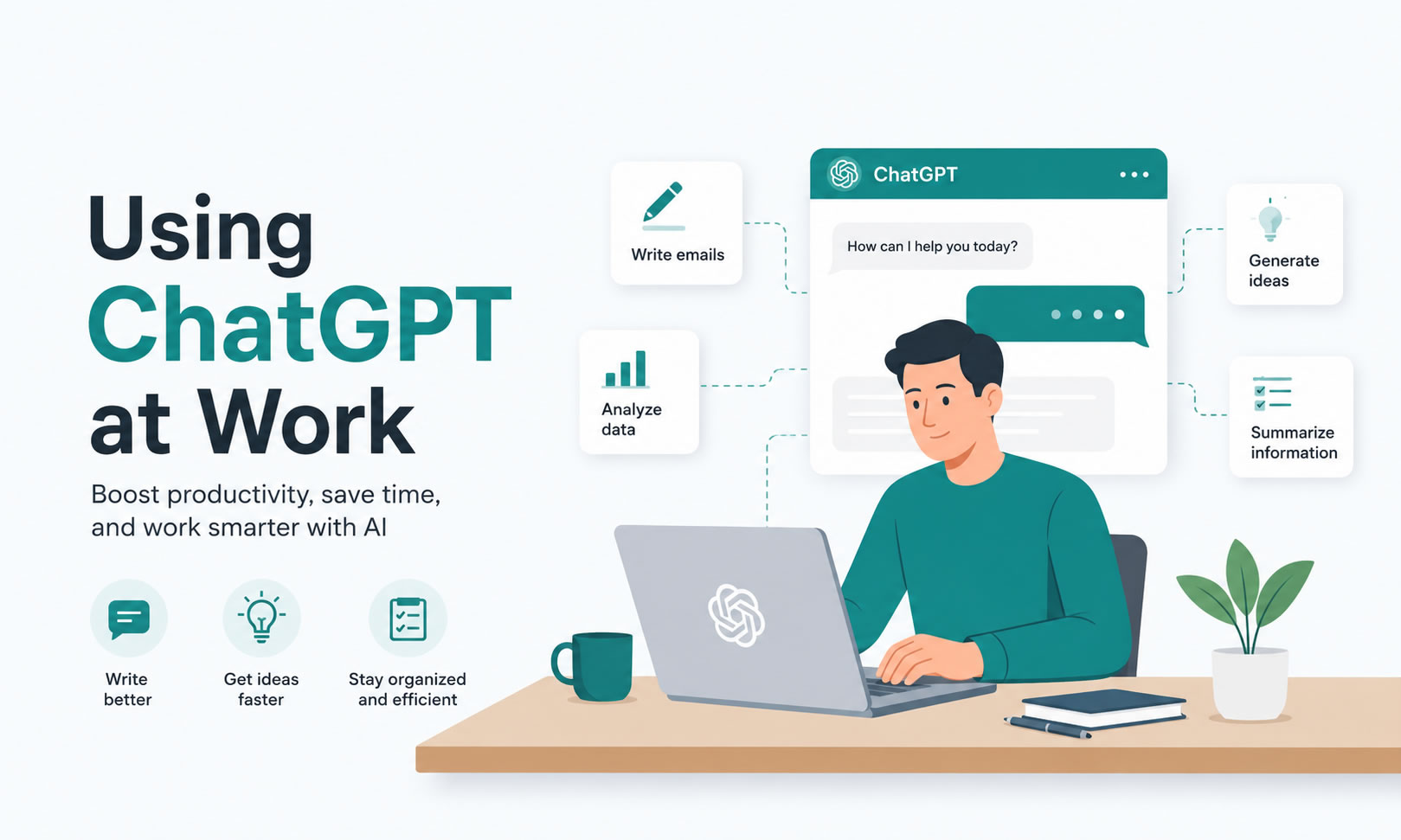
ChatGPT can be a valuable tool to enhance productivity and efficiency in a work environment. Here are a few ways you can utilize ChatGPT at work:
How To Use ChatGPT at Work
- Knowledge and Information Retrieval: ChatGPT can assist in quickly retrieving information, definitions, or explanations related to work topics, saving time and effort spent on searching for the right resources.
- Task Reminders and Management: ChatGPT can serve as a virtual assistant, helping you set reminders, manage tasks, and stay organized in your workday, ensuring important deadlines and meetings are not missed.
- Writing and Editing Support: Whether you need assistance with drafting emails, crafting reports, or editing documents, ChatGPT can provide suggestions, proofread, and help refine your writing for clear and concise communication.
- Onboarding and Training: ChatGPT can act as a training resource, providing answers to common questions during employee onboarding or offering explanations and guidance on specific company processes and policies.
- Problem-Solving and Decision-Making: Utilize ChatGPT's reasoning abilities to brainstorm solutions, explore options, and analyze data in order to make more informed decisions at work.
- Programming and Technical Support: For technical teams, ChatGPT can provide support by offering coding tips, troubleshooting guidance, or explanations of complex technical concepts.
- Customer Support and Service: Integrate ChatGPT into customer support platforms to provide instant responses and assistance to customers, answering frequently asked questions, and potentially reducing response times.
- Collaboration and Idea Generation: Engage in discussions with ChatGPT to generate ideas, explore new perspectives, or facilitate brainstorming sessions with teams, fostering creativity and collaboration.
- Project Management: ChatGPT can help track project progress, provide status updates, and offer reminders for key milestones or tasks, supporting effective project management.
- Employee Well-being: Use ChatGPT to provide resources and suggestions related to employee well-being, such as stress management techniques, work-life balance tips, or access to mental health resources.
Sales and Marketing
In today's fast-paced business world, sales and marketing teams are constantly looking for innovative ways to generate and qualify leads, as well as automate personalized customer interactions. One powerful tool that can assist in these efforts is ChatGPT.
1. Leveraging ChatGPT for Lead Generation and Qualification
Traditionally, lead generation involves time-consuming manual processes such as cold calling, email outreach, and data analysis. However, ChatGPT can revolutionize this process by automating lead generation and qualification tasks. By integrating ChatGPT into your systems, you can engage with potential customers on your website or through messaging platforms.
ChatGPT can proactively initiate conversations, ask targeted questions, and collect essential information from prospects. It can help identify prospects who are more likely to convert by using its natural language understanding capabilities to analyze responses and gauge potential interest. This automation allows your sales team to focus their efforts on the most promising leads, optimizing their efficiency and increasing conversion rates.
2. Automating Personalized Customer Interactions
Personalized interactions are crucial for building strong relationships and driving customer loyalty. ChatGPT can play a vital role in automating these interactions while still maintaining a personal touch.
With ChatGPT, you can automate chat-based customer support, providing instant responses to frequently asked questions and common queries. ChatGPT can use its contextual understanding to engage in dynamic conversations, ensuring a personalized experience for each customer. By integrating customer data, such as past purchases or preferences, ChatGPT can offer tailored recommendations, cross-selling opportunities, or even access to exclusive promotions.
Beyond customer support, ChatGPT can assist with personalized marketing campaigns. It can help craft personalized email or messaging content based on individual customer profiles and past interactions. From product recommendations to personalized offers, ChatGPT's language generation capabilities can help you deliver targeted and engaging messages at scale.
By leveraging ChatGPT for lead generation and qualification, as well as automating personalized customer interactions, your sales and marketing teams can harness its capabilities to streamline processes, improve lead quality, and provide exceptional customer experiences.
Customer Support
In today's fast-paced world, customers expect quick and accurate responses to their queries. Fortunately, with recent advancements in Artificial Intelligence (AI), customer support teams can now provide instant assistance and streamline ticket resolution processes like never before. In this chapter, we will explore two powerful AI technologies - ChatGPT and AI-powered chatbots - that can transform your customer support operations.
1. Using ChatGPT for quick and accurate responses to frequently asked questions
ChatGPT is a state-of-the-art language model that utilizes machine-learning algorithms to understand and generate human-like responses. By training ChatGPT on a vast database of customer queries and relevant information, you can equip it with the knowledge to respond to frequently asked questions swiftly and accurately.
When customers reach out for assistance, ChatGPT can assess their queries and provide instant responses based on its trained knowledge. This not only reduces customers' waiting time but also empowers them to find solutions independently. By leveraging ChatGPT for frequently asked questions, your customer support team can focus their efforts on more complex inquiries and provide personalized assistance to customers who need it most.
2. Streamlining support ticket resolution through AI-powered chatbots
Support ticket resolution can often be time-consuming, especially when faced with numerous requests flooding in simultaneously. This is where AI-powered chatbots can play a vital role. These chatbots are designed to handle basic and repetitive customer queries, allowing your support agents to prioritize high-value tasks and delve into more complex issues.
AI-powered chatbots are equipped with Natural Language Processing (NLP) algorithms, enabling them to understand and analyze customers' tickets intelligently. These chatbots can provide step-by-step guides, troubleshooting tips, or escalate issues to human agents when necessary. By automating these initial interactions, your support team can significantly reduce response times and increase overall efficiency.
Moreover, AI-powered chatbots have the ability to learn and improve over time. They continuously gather data on customer interactions, allowing for ongoing optimization and refinement of responses. This iterative learning process ensures that chatbots become even more adept at resolving customer issues, resulting in higher customer satisfaction rates.
Incorporating AI technologies like ChatGPT and AI-powered chatbots into your customer support strategy can revolutionize the way you interact with your customers. By providing quick and accurate responses to frequently asked questions and streamlining support ticket resolution, you can enhance the overall customer experience, improve operational efficiency, and ultimately drive greater customer satisfaction.
Project Management
Project management is a complex process that requires effective task allocation, streamlined communication, and seamless collaboration. With the advent of Artificial Intelligence (AI), project managers now have access to powerful tools that can enhance their project management capabilities. In this chapter, we will explore two key ways AI can augment project management: leveraging ChatGPT for task allocation and management, and optimizing project collaboration through AI-driven tools.
1. Enhancing task allocation and management with ChatGPT
ChatGPT, a cutting-edge language model trained on vast amounts of data, can be leveraged to simplify and streamline task allocation and management. By utilizing ChatGPT, project managers can automate the process of assigning tasks, ensuring that the right tasks are assigned to the right team members in a timely manner.
ChatGPT can understand and analyze project requirements, resources, and team members' skill sets. Based on these inputs, it can suggest the most suitable individuals for specific tasks, taking into account their availability and expertise. This allows project managers to make informed decisions when delegating responsibilities, ensuring optimal task allocation and maximizing team productivity.
Furthermore, ChatGPT can assist in monitoring task progress. By integrating with project management platforms, ChatGPT can provide real-time updates on task completion, deadlines, and potential roadblocks. This enables project managers to proactively address issues and keep the project on track, optimizing overall project efficiency.
2. Optimizing project collaboration using AI-driven tools
Effective collaboration among team members is at the core of successful project management. AI-driven tools can play a significant role in optimizing project collaboration, aiding teams in working together seamlessly and efficiently.
Incorporating AI into project management practices brings unparalleled efficiency and productivity to the process. By leveraging ChatGPT for enhanced task allocation and management, as well as employing AI-driven tools to optimize project collaboration, project managers can streamline their workflows, mitigate potential roadblocks, and ultimately deliver successful projects on time and within budget.
Other Industries and Job Functions
Enhanced Decision-Making and Problem-Solving
ChatGPT can assist in decision-making at work by providing insights, analyzing data, and offering suggestions based on previous patterns. Here's how it can be helpful:
- Insights: ChatGPT can provide insights by analyzing large amounts of data and extracting relevant information. For example, if you provide it with sales data, it can help you identify trends, customer preferences, or potential areas for improvement. These insights can give you a clearer understanding of the situation and guide your decision-making process.
- Data analysis: ChatGPT can assist in analyzing data by processing and organizing it in a meaningful way. It can sift through complex data sets, perform calculations, and identify correlations or patterns that might not be apparent at first glance. This can help you uncover valuable information and make data-driven decisions.
- Previous patterns: By training on diverse data sources, ChatGPT can understand previous patterns and trends. When confronted with a situation or decision, it can refer to these patterns to offer suggestions or recommendations based on what has worked well in the past. For instance, if you're exploring marketing strategies, ChatGPT can suggest approaches that have proven successful in similar scenarios.
Personal Virtual Assistant
ChatGPT can act as a personal virtual assistant at work by helping with various tasks such as scheduling meetings, organizing tasks, and managing calendars. Here's how it can be beneficial:
- Scheduling meetings: You can interact with ChatGPT to schedule meetings by providing it with the necessary details, such as participants, time constraints, and preferred meeting slots. It can help identify common availability, suggest suitable meeting times, and even send out calendar invitations on your behalf.
- Organizing tasks: ChatGPT can assist in organizing tasks by helping you create to-do lists, prioritizing tasks, and setting reminders. You can simply communicate your tasks to ChatGPT, and it can keep track of them for you. It can also provide updates on task progress or suggest ways to allocate your time effectively.
- Managing calendars: ChatGPT can help manage your calendar by adding, modifying, or removing events based on your inputs. It can handle scheduling conflicts, remind you of upcoming appointments, and provide you with an overview of your day's schedule. This can ensure that you stay organized and avoid any scheduling mishaps.
Time Management and Task Organization
ChatGPT can be a useful tool for employees to manage time, prioritize tasks, and set reminders, ultimately helping them stay organized and on top of their responsibilities. Here's how ChatGPT can assist in these areas:
- Time management: ChatGPT can help employees manage their time more effectively by providing insights and suggestions. By discussing your workload and deadlines with ChatGPT, it can offer recommendations on how to allocate your time efficiently. For example, if you have multiple tasks to complete, it can suggest a timeline or help you identify tasks that require immediate attention.
- Task prioritization: ChatGPT can assist in prioritizing tasks by allowing you to discuss your to-do list and providing guidance. You can share the tasks you need to complete, and ChatGPT can help you determine which tasks are most important or time-sensitive. It can consider factors like deadlines, dependencies, and the overall impact of each task to help you prioritize effectively.
- Setting reminders: ChatGPT can act as a virtual reminder system, helping employees stay on track with their responsibilities. You can ask ChatGPT to set reminders for specific tasks or deadlines, and it can alert you at the appropriate time. This ensures that important tasks don't fall through the cracks and helps you manage your time more effectively.
- Task organization: ChatGPT can assist in organizing tasks by maintaining a to-do list or task management system. You can add tasks, update their status, and discuss progress with ChatGPT. It can also help you categorize tasks based on project, urgency, or other relevant criteria, making it easier to prioritize and stay organized.
Decision Support
ChatGPT can serve as an intelligent assistant by offering insights and recommendations to aid decision-making in various areas, including resource allocation, project planning, and problem-solving. Here's how it can assist:
- Resource allocation: ChatGPT can help with resource allocation by analyzing available resources, project requirements, and constraints. By providing relevant information to ChatGPT, it can offer insights into the optimal distribution of resources, such as budget, workforce, or materials, based on previous patterns or industry best practices. It can help you make informed decisions on how to allocate resources efficiently to maximize project outcomes.
- Project planning: ChatGPT can assist in project planning by offering recommendations on tasks, timelines, and dependencies. By discussing project details with ChatGPT, it can generate project plans, identify potential bottlenecks, and suggest ways to mitigate risks. It can consider factors like task duration, resource availability, and project goals to help you create realistic and effective project plans.
- Problem-solving: ChatGPT can be valuable in problem-solving scenarios by providing insights and suggestions to address challenges. By describing the problem or sharing relevant information, ChatGPT can analyze patterns, draw from previous examples, and propose potential solutions. It can help you brainstorm ideas or explore alternative approaches to tackle complex problems.
- Learning from data: ChatGPT can leverage its knowledge of previous patterns and data to offer informed recommendations. By training on a wide range of information, it has the ability to extract insights from data and apply them to new scenarios. This can be particularly useful for decision-making as it can provide context and suggest strategies based on what has worked well in similar situations.
Personal Development and Learning
ChatGPT can facilitate continuous learning by providing access to training materials, industry news, and expert insights, enabling employees to upskill and stay relevant. Here's how it can support continuous learning:
- Training materials: ChatGPT can offer access to training materials such as articles, tutorials, videos, or other resources. Employees can ask for specific topics they want to learn about, and ChatGPT can provide relevant materials to enhance their knowledge. This can support self-paced learning and enable employees to acquire new skills or deepen their existing expertise.
- Industry news and updates: ChatGPT can keep employees informed about industry news and updates. By asking questions or discussing specific topics, employees can receive real-time information about the latest trends, market shifts, regulatory changes, or technology advancements. This helps employees stay up-to-date with developments in their field, fostering continuous learning.
- Expert insights: ChatGPT has been trained on a wide array of data, including expert opinions and insights. Employees can seek guidance from ChatGPT on specific challenges or seek recommendations based on expert perspectives. While not a substitute for direct human interaction, ChatGPT can provide a starting point for exploring different viewpoints and accessing a vast range of expertise.
- Skill development suggestions: ChatGPT can offer recommendations for skill development based on an individual's interests, goals, and current skill set. By discussing career aspirations or skill gaps, employees can receive guidance on the most relevant areas to focus on. ChatGPT can suggest specific skills to acquire or areas to improve, helping employees tailor their learning journey.
Overcoming Challenges and Limitations
Using AI technologies like ChatGPT comes with potential challenges that need to be addressed in order to ensure their effective and responsible use at work. Here are some key challenges to consider:
- Feedback and fine-tuning: AI models like ChatGPT require continuous feedback to improve their performance and address limitations. It's important to actively collect feedback from users and iterate on the model to enhance its accuracy and relevance over time. Regular fine-tuning based on user feedback can help ensure that ChatGPT provides more helpful and reliable responses.
- Overcoming biases: AI models like ChatGPT can inadvertently reflect biases present in the training data. It's crucial to be mindful of potential biases and work towards mitigating them. Careful data curation, bias detection techniques, and ongoing monitoring can reduce biases and ensure fair and equitable interactions. Regular audits can be conducted to identify and address any bias concerns.
- Data security and privacy: Using AI technologies involves processing and storing data. It's important to implement robust security measures to protect sensitive information and ensure compliance with data privacy regulations. Access controls, encryption, and adherence to data protection policies can help safeguard sensitive data and maintain confidentiality.
- Human oversight and accountability: While AI technologies can be powerful tools, they should not replace human judgment and responsibility. It's essential to have human oversight in place to review and validate the decisions or recommendations provided by AI systems. Establishing clear accountability frameworks and educating employees about the limitations and appropriate use of AI technologies can help ensure responsible implementation.
- Ethical considerations: AI technologies should align with ethical principles and professional standards. Organizations should consider the ethical implications of AI usage, including issues around privacy, fairness, transparency, and consent. Developing and adhering to ethical guidelines can promote responsible AI usage and maintain trust with employees and stakeholders.
Best Practices for Implementing ChatGPT in Your Work
Integrating ChatGPT into your workplace can be a game-changer for productivity and efficiency. However, to make the most of this powerful tool, it's important to establish some best practices. By following these guidelines, you can ensure accurate and reliable interactions while maintaining user privacy and adhering to company policies. From training and monitoring to feedback and version control, here are some essential best practices to optimize your use of ChatGPT in the workplace.
1. Define your goal
Clearly identify the purpose of using ChatGPT. Whether it's for customer support, content generation, or internal assistance, having a specific goal ensures better utilization and efficient interactions.
2. Train ChatGPT properly
Fine-tune the base model using a substantial amount of high-quality, company-specific data. This helps ChatGPT understand context and provide more accurate responses. Regularly retrain the model with new data to improve its performance.
3. Set clear guidelines
Establish guidelines for ChatGPT usage to ensure consistency and compliance with company policies. These guidelines should cover acceptable content, tone, and potential limitations. Communicate these guidelines to all users.
4. Monitor and moderate
Keep an eye on the conversations between ChatGPT and users to ensure that it provides accurate and appropriate responses. Implement a moderation system to flag any potential issues or biases in the AI-generated content.
5. Encourage user feedback
Encourage employees to provide feedback on the quality and relevance of ChatGPT's responses. This feedback loop helps identify areas for improvement and makes continuous updates to the model.
6. Avoid over-reliance
While ChatGPT can be a powerful tool, it's important not to overly rely on it. Users should be encouraged to use critical thinking and cross-verify information to avoid potential errors.
7. Maintain user privacy
Protect user privacy by implementing appropriate security measures. Ensure that sensitive information is not shared in conversations with ChatGPT or stored beyond what is necessary.
8. Regularly fact-check and verify information
While ChatGPT can provide helpful insights and recommendations, it's crucial to independently fact-check and verify any critical information or advice it offers. Use reliable sources, cross-reference information, and exercise critical thinking to validate the accuracy and reliability of the responses from ChatGPT.
9. Establish fallback options
Prepare alternative solutions or resources for situations where ChatGPT may not have the necessary knowledge or expertise. By having fallback options readily available, you can ensure that users receive the assistance they need even if ChatGPT cannot provide a satisfactory response.
10. Regularly evaluate performance
Continuously evaluate ChatGPT's performance to identify areas for improvement. Analyze metrics such as response accuracy, customer satisfaction, and efficiency to measure the tool's effectiveness. Use this data to refine your training process and optimize the usage of ChatGPT in your workplace.
Creating Better Prompts for Optimal Results
The effectiveness of ChatGPT relies heavily on the clarity and structure of your prompts. To guide users in crafting better prompts, focus on including the following elements:
Provide Context
Clearly state the situation or background information to help ChatGPT better understand the task. For example, instead of asking, "How do I write a good email?" you could say, "I need to write an email to my team about an upcoming project deadline. Can you provide a professional template for that?"
Be Specific
Avoid vague requests and specify exactly what you need. For instance, instead of, "Write something about time management," try, "Can you create a three-paragraph article about time management techniques for busy professionals?"
Define Outcomes
If you have a desired structure or tone, make that explicit. For example, "Write a step-by-step guide in a friendly and approachable tone for a blog audience."
By mastering prompt creation, users can generate responses that are more relevant, actionable, and aligned with their needs.
Advanced Techniques to Get More Out of ChatGPT
To maximize ChatGPT's potential, consider employing advanced strategies like:
Iterative Prompting
If the initial response isn't quite what you need, refine your request. For example, after receiving a general summary, you could follow up with, "Can you elaborate on point three?" or, "Can you rewrite this in a more formal tone?"
Breaking Tasks into Smaller Steps
For complex requests, divide them into manageable chunks. For example, instead of asking, "Write a comprehensive marketing plan," you might start with, "Outline the main components of a marketing plan." Follow up with, "Now elaborate on the social media strategy section."
Prompt Drafting by ChatGPT
You can ask ChatGPT to help craft its own prompts. For instance, you could say, "What information do you need to create a detailed event proposal?" This approach ensures that the AI has all the context it needs to deliver high-quality results.
Troubleshooting Tips
Despite its advanced capabilities, ChatGPT might occasionally deliver unsatisfactory results. Here's how to address common challenges:
Clarify Your Prompt
If the response is off-target, review your prompt for ambiguity. Reframe it to be more specific and add relevant context.
Adjust Tone or Depth
If the response feels too casual or lacks depth, include instructions in your prompt, such as, "Provide a detailed explanation," or, "Use a professional tone."
Recognize Limitations
When encountering topics where ChatGPT lacks expertise, rely on external sources to verify critical information. Acknowledge that AI can complement, but not fully replace, human judgment.
By incorporating these strategies, your team can use ChatGPT more effectively, enhancing collaboration and problem-solving while minimizing frustration.
What’s New in 2026
As we navigate through 2026, ChatGPT has undergone its most dramatic evolution since launch—transforming from a clever chatbot into a comprehensive AI workspace that's revolutionizing how professionals work. If you haven't logged in recently, prepare to be amazed. The changes aren't just incremental improvements; they represent a fundamental shift in how AI integrates into business workflows.
Let's dive into the game-changing updates that are making ChatGPT an indispensable business partner in 2026.
The Three Revolutionary Shifts Reshaping Work
1. Model Simplification with GPT-5.2
Gone are the days of choosing between GPT-4, GPT-4 Turbo, or various other model versions. ChatGPT now runs on the unified GPT-5.2 system with three intelligence modes: Instant (for quick tasks), Thinking (for complex reasoning), and Pro (for the most demanding work). This isn't just cleaner—it's dramatically more capable.
2. From Chat to Collaborative Workspace
ChatGPT has evolved beyond individual conversations into a true team collaboration platform. With Projects, Shared Projects, and Company Knowledge integration, your AI assistant now works seamlessly across your entire organization's data and tools.
3. Autonomous AI That Works While You Sleep
The introduction of agentic features means ChatGPT can now run scheduled tasks, conduct deep research, and execute multi-step workflows automatically. It's like having a dedicated research assistant working 24/7.
GPT-5.2: The Intelligence Breakthrough
Three Models, One Seamless Experience
The GPT-5.2 system launched December 11, 2025, represents the first AI to consistently outperform human experts across a broad range of business tasks. Here's how the three tiers work:
GPT-5.2 Instant (Available to Free users)
- Lightning-fast responses for everyday tasks
- Perfect for emails, quick summaries, and routine questions
- Accessible to everyone, making AI assistance truly universal
GPT-5.2 Thinking (Plus/Business/Enterprise)
- Deep reasoning with adjustable "thinking time"
- Choose Light, Standard, Extended, or Heavy based on task complexity
- Ideal for financial modeling, strategic analysis, and complex problem-solving
GPT-5.2 Pro (Pro/Enterprise users)
- Maximum capability for the most demanding professional tasks
- Extended context for book-length documents
- Perfect for comprehensive research and multi-faceted projects
Projects: Your New Command Center
Beyond Individual Chats
Projects represent ChatGPT's evolution into a true workspace platform. Instead of scattered conversations, you now organize work around specific goals and outcomes.
How Smart Teams Use Projects
Sales Team Example: "Q2 Prospecting" Project
- Upload ICP descriptions, messaging guidelines, and lead CSVs
- Every team member can drop in new prospect lists
- Get prioritized call scripts, follow-up sequences, and qualification notes
- All consistent with your brand voice and methodology
Customer Support Example: "Support Playbook" Project
- Include FAQ PDFs, help center exports, and sample tickets
- Agents get instant, cited responses grounded in your actual policies
- Draft replies maintain consistency while saving hours daily
- Escalation summaries automatically reference relevant documentation
Shared Projects: True AI Collaboration
Working Together with AI
Shared Projects launched in October 2025 as ChatGPT's answer to team collaboration. Multiple users can contribute files, refine instructions, and build on each other's AI interactions.
Key Capabilities:
- Cross-plan collaboration: Free and paid users can work together
- Persistent team context: AI remembers your team's working style
- File sharing with AI context: Upload once, everyone benefits
- Collaborative instruction refinement: Build better AI prompts together
Power User Tip: Set up a "Monthly KPI Reporting" shared project with your data templates and reporting standards. Team members can upload their departmental data, and ChatGPT will generate consistent, formatted reports that match your executive presentation style.
Company Knowledge: Your Business Brain
Available for Business and Enterprise Plans
Perhaps the most transformative feature for larger organizations, Company Knowledge connects ChatGPT directly to your business systems and data.
Supported Integrations:
- Slack conversations and channels
- Google Drive and SharePoint documents
- Gmail and Outlook communications
- HubSpot, Salesforce, and CRM data
- Notion wikis and Confluence pages
- Zendesk tickets and support data
- Custom connectors via Model Context Protocol (MCP)
How It Changes Everything
Instead of generic responses, ChatGPT now provides organization-specific insights with full citations and source links.
Example Query: "Give me a brief on Client X before my call"
ChatGPT Response with Company Knowledge:
- Recent Slack mentions and project updates
- Latest CRM notes and opportunity status
- Previous proposal documents from SharePoint
- Support ticket history and resolution status
- All with clickable links to source documents
Security Note: Company Knowledge respects existing permissions—ChatGPT only accesses data you already have access to, and all information stays within your company's secure environment.
Agentic AI: Your 24/7 Assistant
Deep Research
Deep Research transforms ChatGPT into a comprehensive research partner that works across web sources and internal company data.
What It Does:
- Conducts long-form, cited research on complex topics
- Combines web sources with your internal documents
- Exports professional PDF reports with full citations
- Runs autonomously based on your research parameters
Business Use Case: Set up weekly competitive landscape research for your industry. ChatGPT will automatically scan for new developments, analyze competitor announcements, and deliver a comprehensive briefing every Monday morning.
Scheduled Tasks
Tasks allow you to automate recurring AI workflows that run on your schedule.
Popular Business Applications:
- Weekly support ticket analysis and trend reporting
- Monthly customer feedback categorization
- Daily social media content suggestions
- Quarterly financial data summaries
Setup Example: Create a Friday afternoon task: "Review this week's sales pipeline data, identify stalled deals, and draft follow-up email templates for the sales team."
ChatGPT Pulse (Pro Users)
Pulse runs continuous background research based on your memory and interaction history, delivering personalized daily insights.
How It Works:
- Analyzes your ChatGPT usage patterns
- Identifies relevant industry developments
- Surfaces potential opportunities or threats
- Delivers visual summary dashboards
Autonomous Agents
The most advanced agentic feature, Agents can perform complex multi-step actions across web applications and business tools.
Example Workflow: An agent can monitor your project management board, identify overdue tasks, automatically draft status update emails to stakeholders, and adjust project timelines based on preset parameters—all without human intervention.
Enhanced Memory and Personalization
Smarter Context Management
ChatGPT's memory system has evolved to be more intelligent and business-focused:
Automatic Memory Prioritization:
- Important business context stays accessible
- Less relevant details fade automatically
- Recent and frequently-used information surfaces first
- Referenced chats appear as clickable sources
Professional Personalization Controls:
- Tone Presets: Choose from Friendly, Efficient, Professional, Candid, or Quirky
- Communication Sliders: Adjust warmth, enthusiasm, formatting preferences
- Emoji Frequency: Perfect for maintaining professional consistency
- Instant Application: Changes apply immediately across all conversations
Business Impact: Set your preference to "Professional tone, low warmth, detailed lists" once, and every document, email, and analysis will maintain that consistent voice across your entire team's interactions.
Visual Intelligence Revolution
Richer, Scannable Responses
ChatGPT now delivers information in more visually appealing and digestible formats:
New Visual Elements:
- Inline visuals for statistics and data points
- Side panels with key facts and entities
- Highlighted important people, companies, and products
- Better formatting for mobile and meeting contexts
- Interactive charts and data visualizations
Professional Advantage: During client meetings, you can quickly scan ChatGPT responses for key metrics and insights without reading through dense text blocks. The visual highlighting helps you focus on the most relevant information instantly.
The Codex Revolution
Beyond ChatGPT: Dedicated Development Environment
OpenAI launched the standalone Codex macOS app specifically designed for development workflows.
Key Features:
- Multiple coding agents running in parallel
- Advanced diff management and version control
- Background task execution
- Reusable coding skills and patterns
- Integration with existing development tools
Business Impact: Even non-technical teams benefit when their technical colleagues use Codex to automate integrations, build internal tools, and create the "glue code" that connects business systems.
Future-Proofing Your AI Skills
The New Essential Competencies
As ChatGPT evolves into a comprehensive business platform, professionals need to develop new skills:
1. Project Architecture: Learn to structure recurring workflows as projects rather than one-off chats
2. Context Curation: Master the art of writing project-level instructions that provide consistent, useful context
3. Thinking Time Optimization: Understand when to use Light vs Extended vs Heavy reasoning for different business scenarios
4. Collaborative AI Management: Develop skills in managing shared AI resources across teams
5. Verification Workflows: Build habits of checking citations and source links, especially for business-critical decisions
What This Means for Your Business
The latest developments with ChatGPT represents more than feature updates—it's a fundamental shift toward AI-augmented business operations. Organizations that embrace these collaborative, agentic workflows will gain significant competitive advantages through:
- Faster decision cycles with instant access to organizational knowledge
- Consistent quality through shared AI resources and standardized processes
- Reduced operational overhead via automated research and reporting
- Enhanced team collaboration through AI-mediated knowledge sharing
- Scalable expertise that grows with your business needs
The professionals and organizations that master these capabilities won't just work faster—they'll work fundamentally differently, with AI as a true collaborative partner rather than just an advanced search tool.
ChatGPT in 2026 is about building AI-powered business processes that compound your team's capabilities and accelerate your competitive advantage.
Mastering Prompt Engineering
Prompt engineering is the cornerstone of effective interaction with ChatGPT. By crafting precise, structured prompts, you can guide the AI to generate more accurate, actionable, and context-appropriate responses. Whether you're drafting emails, solving complex problems, or brainstorming creative ideas, mastering prompt engineering can unlock the full potential of ChatGPT.
Here’s a guide to crafting better prompts and leveraging advanced techniques to get the most out of your interactions:
The Anatomy of a Great Prompt
A well-designed prompt typically includes three essential components:
Context: Provide relevant background information to help ChatGPT understand the scenario.
- Example: Instead of “Help me write an email,” try, “I’m writing an email to a client to confirm a project meeting. The tone should be professional but approachable.”
Task: Clearly specify what you want ChatGPT to do.
- Example: “Summarize this text in bullet points” or “Draft a two-paragraph introduction for my presentation.”
Details and Constraints: Add any specific requirements, such as tone, length, or style.
- Example: “Rewrite this paragraph in a casual tone, keeping it under 100 words.”
Examples of Good vs. Bad Prompts
Bad Prompt:
“Tell me about marketing.”
- Why it’s ineffective: It’s vague and lacks focus, leading to a generic response.
Good Prompt:
“Can you provide a three-paragraph explanation of content marketing, focusing on how small businesses can use blogs and social media to increase brand awareness?”
- Why it’s effective: It’s specific, detailed, and sets clear expectations for the output.
Advanced Techniques for Prompt Engineering
Iterative Refinement: Start with a broad prompt and refine based on the initial response.Example:
- Initial Prompt: “Draft a product description for a smartwatch.”
- Follow-up: “Add a focus on fitness tracking features and make it appeal to active professionals.”
Prompt Chaining: Break complex tasks into smaller, sequential prompts.
Example:
- “List the key steps in creating a marketing plan.”
- “Now elaborate on the social media strategy section of this plan.”
Instruct ChatGPT to Generate Prompts: Let the AI help guide the interaction by asking what it needs to create the best output.
Example: “What information do you need from me to create a 500-word blog post on workplace productivity?”
Role-Playing: Ask ChatGPT to adopt a specific persona or perspective.
Example: “Pretend you’re a project manager. How would you explain the benefits of Agile methodology to a client unfamiliar with the process?”
Troubleshooting and Fine-Tuning Prompts
Even with well-crafted prompts, you may occasionally receive unsatisfactory responses. Here’s how to troubleshoot and improve:
- Add Context: If the response is off-target, include more details in your prompt.
Example: “Write a professional email” becomes, “Write a professional email to a team member reminding them about an upcoming deadline.” - Request Alternative Outputs: If you’re not satisfied with the result, ask ChatGPT to try again.
Example: “Can you rephrase this to make it sound more concise?” - Specify Tone and Style: Tailor the response to fit your needs.
Example: “Write a persuasive email” becomes, “Write a persuasive email in a conversational tone suitable for a small business owner.”
Tips for Scaling Prompt Engineering Across Teams
Create Prompt Templates: Develop reusable templates for common tasks.
Example: Template for Emails
- Context: [Brief description of the situation]
- Task: [What the email should accomplish]
- Tone: [Friendly, professional, casual, etc.]
Train Team Members: Provide workshops or guides on crafting effective prompts to ensure consistency across your organization.
Document Best Practices: Maintain a shared resource with examples of successful prompts and troubleshooting strategies.
Mastering prompt engineering transforms ChatGPT from a useful tool into an indispensable collaborator. With clear, thoughtful prompts, you’ll achieve faster, more accurate results that align perfectly with your goals.
100 Ways to Try ChatGPT Today
Project-Based Workflows to Try in ChatGPT (2026 edition):
1. Set up a "Client Research Hub" shared project
Prompt: Create a shared project for prospect research. Upload your ICP definition, competitor analysis, and past successful client profiles. Ask team members to add new prospects and get AI-generated research briefs, outreach strategies, and qualification scorecards that stay consistent across your entire sales team.
2. Build a "Campaign Command Center" for marketing teams
Prompt: Establish a shared project called "Q2 Product Launch" with brand guidelines, previous campaign performance data, and target audience personas. Have different team members contribute content ideas, ad copy, and landing page concepts while maintaining unified messaging and tone across all deliverables.
3. Create an "Operations Playbook" for recurring processes
Prompt: Set up a project with your SOPs, checklists, and process documentation. Ask ChatGPT to generate step-by-step workflows for common scenarios, risk assessment templates for new initiatives, and post-mortem frameworks that reference your actual policies and procedures.
4. Launch a "Support Knowledge Base" for customer service teams
Prompt: Build a shared project with FAQ documents, product manuals, and sample ticket resolutions. Team members can instantly get drafted responses to customer inquiries that cite your actual help documentation, ensuring consistent, accurate support while dramatically reducing response time.
5. Develop a "Financial Analysis Center" for data-driven decisions
Prompt: Create a project with historical financial data, budget templates, and KPI definitions. Upload monthly reports and ask ChatGPT to identify trends, flag anomalies, and generate executive summaries that automatically reference your specific business metrics and benchmarks.
100 Ways to Try ChatGPT:
1. Answer frequently asked questions from colleagues or clients.
Prompt: Can you explain the return/exchange policy using the following summary?
[Insert a summary of your company’s policy]
2. Draft and refine emails, reports, or other written communication.
Prompt: Can you provide suggestions for improving the flow of my executive summary?
[Insert your executive summary]
3. Create meeting outlines and decks
Prompt: Could you help me create a slide deck outline for our upcoming sales team meeting?
[Insert details about the meeting objectives and attendees]
4. Generate ideas for team-building activities.
Prompt: Can you suggest some creative team-building activities that our department can participate in?
[Provide some information about your department's size and interests]
5. Provide reminders for important deadlines or events.
Prompt: Could you remind me about the deadline for submitting the project proposal?
[Specify the project name and the date the proposal is due]
6. Conduct research on industry trends or competitors.
Prompt: Can you gather information on the latest trends in digital marketing?
[Specify the specific aspect or subtopic in digital marketing you're interested in]
7. Help plan and coordinate company events or celebrations.
Prompt: Could you help me with planning our annual holiday party?
[Include any preferences or requirements for the party, such as date, time, location, and expected number of attendees]
8. Generate ideas for blog or social media content.
Prompt: Can you provide some blog post ideas related to customer experience?
[Specify any specific focus areas or target audience for the blog content]
9. Assist with data entry and organization.
Prompt: Can you help me organize the customer data spreadsheet?
[Specify the specific criteria or format for organizing the data]
10. Provide training resources or documentation.
Prompt: Can you provide a step-by-step guide on how to create a new deal in our CRM?
[Specify the CRM platform being used and any specific requirements or fields to consider]
11. Generate suggestions for employee recognition programs.
Prompt: What are some creative ways we can recognize and appreciate our employees' hard work and achievements?
[Provide some background information on the company culture and the number of employees]
12. Assist with scheduling meetings or appointments.
Prompt: Can you help me find a time that works for everyone to schedule a team meeting?
[Specify the desired meeting duration, the participants' availability, and any preferred dates or times]
13. Provide recommendations for team productivity tools.
Prompt: Can you suggest some tools or software that can help our team collaborate and stay organized?
[Specify any specific features or requirements]
14. Assist with customer support inquiries.
Prompt: Can you help me respond to a customer's support ticket about a billing issue?
[Provide necessary details like the customer's name and the specific issue]
15. Generate ideas for improving internal communication.
Prompt: What are some creative ways we can enhance communication among different departments in our company?
[Provide any current challenges or pain points in communication]
16. Help create a project timeline or roadmap.
Prompt: Can you assist me in creating a timeline for our upcoming marketing campaign?
[Specify the campaign start and end dates, key milestones, and any dependencies]
17. Provide suggestions for optimizing email marketing campaigns.
Prompt: Can you give me some tips on improving our email open rates and click-through rates?
[Specify any specific challenges or current performance metrics]
18. Assist with lead generation strategies.
Prompt: Can you suggest some effective lead generation tactics for our sales team?
[Provide any target audience or industry information]
19. Provide recommendations for professional development resources.
Prompt: Can you suggest some online courses or training programs for improving leadership skills?
[Specify any specific focus areas or desired outcomes]
20. Help organize and categorize digital files or documents.
Prompt: Can you assist me in organizing our shared drive and creating a standardized naming convention?
[Specify any existing categories or folder structure]
21. Assist with content creation for marketing materials.
Prompt: Can you help me write engaging copy for our upcoming product brochure?
[Provide any specific details or key features that should be highlighted]
22. Generate ideas for team bonding activities for remote teams.
Prompt: Can you suggest some virtual team-building activities for our remote employees?
[Provide information on the number of remote employees and any tools or platforms available for virtual activities]
23. Provide recommendations for project management software.
Prompt: What project management software would you recommend for our team to improve productivity and collaboration?
[Specify any specific features or integrations needed]
24. Assist with market research and competitor analysis.
Prompt: Can you help me gather information on our top competitors and their marketing strategies?
[Specify the industry or market segment and any key competitors]
25. Generate ideas for employee wellness programs.
Prompt: Can you suggest some initiatives or activities to promote employee wellness and work-life balance?
[Provide information on the company's current wellness programs or initiatives]
26. Help create a customer satisfaction survey.
Prompt: Can you assist me in designing a customer satisfaction survey to gather feedback on our products and services?
[Specify any specific questions or metrics to include]
27. Provide recommendations for customer retention strategies.
Prompt: What are some effective strategies or tactics to improve customer retention for our business?
[Provide any information on current customer churn rates or challenges]
28. Assist with social media management and scheduling.
Prompt: Can you help me schedule our social media posts for the upcoming week?
[Specify the social media platforms and any specific content or hashtags to include]
29. Generate ideas for optimizing website conversion rates.
Prompt: Can you give me some suggestions on how to increase our website's conversion rates?
[Provide any specific pages or areas of the website to focus on]
30. Provide recommendations for collaboration tools for remote teams.
Prompt: What tools or platforms would you recommend for our remote team to collaborate effectively?
[Specify any specific features or integrations needed]
31. Assist with creating and managing email marketing campaigns.
Prompt: Can you help me design and send out our monthly newsletter to our subscribers?
[Provide any specific content or promotions to be included]
32. Generate ideas for team-building activities for a large company retreat.
Prompt: Can you suggest some engaging activities for our company retreat with over 200 employees?
[Provide any specific location or theme for the retreat]
33. Provide recommendations for streamlining internal processes.
Prompt: What are some ways we can simplify and streamline our project approval process?
[Provide any current pain points or bottlenecks in the process]
34. Assist with creating and managing online advertising campaigns.
Prompt: Can you help me set up and optimize our Google Ads campaign?
[Specify any specific campaign goals or target audience]
35. Generate ideas for improving customer onboarding processes.
Prompt: Can you give me some suggestions on how to enhance our customer onboarding experience?
[Provide any current challenges or pain points in onboarding]
36. Provide recommendations for team training and development programs.
Prompt: Can you suggest some training programs or workshops to enhance our team's skills and knowledge?
[Provide any specific areas or skills to focus on]
37. Assist with data analysis and reporting.
Prompt: Can you help me analyze and summarize our monthly sales data?
[Specify any specific metrics or reports required]
38. Generate ideas for cross-selling or upselling strategies.
Prompt: Can you give me some recommendations on how to effectively cross-sell or upsell our products?
[Provide any information on current customer purchasing patterns]
39. Provide recommendations for employee engagement initiatives.
Prompt: What are some initiatives or programs we can implement to improve employee engagement and morale?
[Provide any current challenges or feedback from employee surveys]
40. Assist with market segmentation and target audience analysis.
Prompt: Can you help me identify and define our target audience for a new product launch?
[Specify any specific demographics or psychographics to consider]
41. Generate ideas for team-building activities for remote and distributed teams.
Prompt: Can you suggest some virtual team-building activities that can help foster collaboration and connectivity among our remote and distributed teams?
[Provide information on the number of remote employees and any tools or platforms available for virtual activities]
42. Provide recommendations for time management techniques.
Prompt: What are some effective time management techniques or strategies that can help improve productivity and efficiency?
[Specify any specific challenges or areas where time management is needed]
43. Assist with creating and optimizing landing pages for lead capture.
Prompt: Can you help me create a high-converting landing page for our upcoming lead generation campaign?
[Provide any specific content or design preferences]
44. Generate ideas for employee recognition and rewards programs.
Prompt: Can you suggest some creative ways to recognize and reward our employees for their hard work and achievements?
[Provide information on the company's budget and any existing recognition programs]
45. Provide recommendations for improving customer service and support.
Prompt: What are some best practices or strategies to enhance our customer service and support efforts?
[Provide any specific feedback or areas of improvement]
46. Assist with creating and managing a content calendar for social media.
Prompt: Can you help me create a content calendar for our social media platforms for the next quarter?
[Specify the desired posting frequency and any key events or promotions]
47. Generate ideas for improving employee feedback and performance reviews.
Prompt: Can you give me some suggestions on how to make our employee feedback and performance review process more effective and meaningful?
[Provide any specific challenges or feedback from employees]
48. Provide recommendations for A/B testing and optimization.
Prompt: What are some best practices for conducting A/B testing and optimizing our website or marketing campaigns?
[Provide any specific elements or metrics to focus on]
49. Assist with creating and managing customer segmentation for targeted marketing campaigns.
Prompt: Can you help me segment our customer database based on specific criteria for our upcoming targeted marketing campaign?
[Specify the desired segmentation criteria or target audience]
50. Generate ideas for improving employee engagement in remote work environments.
Prompt: Can you give me some suggestions on how to boost employee engagement and motivation in a remote work setup?
[Provide any specific challenges or feedback from employees]
51. Provide recommendations for improving email deliverability rates.
Prompt: What are some strategies or best practices to improve our email deliverability rates and avoid being marked as spam?
[Provide any specific challenges or email marketing platforms being used]
52. Assist with creating and managing customer loyalty programs.
Prompt: Can you help me design and implement a customer loyalty program to reward our repeat customers?
[Provide any specific rewards or incentives to consider]
53. Generate ideas for improving website usability and user experience.
Prompt: Can you suggest some ways to enhance the usability and user experience of our website?
[Specify any specific pain points or user feedback]
54. Provide recommendations for remote team communication tools.
Prompt: What communication and collaboration tools would you recommend for our remote team to stay connected and productive?
[Specify any specific features or integrations needed]
55. Assist with creating and managing customer feedback surveys.
Prompt: Can you help me design a customer feedback survey to gather insights on our products and services?
[Specify any specific questions or metrics to include]
56. Generate ideas for improving sales conversion rates.
Prompt: Can you give me some suggestions on how to increase our sales conversion rates and close more deals?
[Provide any specific sales processes or metrics to focus on]
57. Provide recommendations for improving website SEO (search engine optimization).
Prompt: What are some strategies or tactics to improve our website's SEO and increase organic traffic?
[Provide any specific keywords or competitors to consider]
58. Assist with creating and managing a customer referral program.
Prompt: Can you help me develop a customer referral program to incentivize our existing customers to refer new leads?
[Provide any specific rewards or incentives to offer]
59. Generate ideas for improving employee onboarding processes.
Prompt: Can you give me some suggestions on how to enhance our employee onboarding experience and make it more efficient?
[Provide any specific challenges or pain points in onboarding]
60. Provide recommendations for effective customer relationship management (CRM) strategies.
Prompt: What are some best practices or strategies for managing and nurturing customer relationships using our CRM system?
[Specify the CRM platform being used and any specific challenges or goals]
61. Assist with creating and managing customer advocacy programs.
Prompt: Can you help me develop a customer advocacy program to empower and mobilize our loyal customers to promote our brand?
[Provide any specific rewards or incentives to offer and any existing customer base]
62. Generate ideas for improving employee training and development programs.
Prompt: Can you give me some suggestions on how to enhance our employee training and development programs to foster continuous learning and growth?
[Provide any specific areas or skills to focus on and any existing training initiatives]
63. Provide recommendations for optimizing website speed and performance.
Prompt: What are some strategies or tools we can use to improve our website's loading speed and overall performance?
[Specify any specific challenges or metrics to focus on]
64. Assist with creating and managing customer retention campaigns.
Prompt: Can you help me design and execute a customer retention campaign to reduce churn and increase customer loyalty?
[Provide any specific offers or messages to include]
65. Generate ideas for team recognition and appreciation activities.
Prompt: Can you suggest some creative ways to recognize and appreciate our team members' contributions and accomplishments?
[Provide any specific team size or dynamics]
66. Provide recommendations for remote team collaboration and project management tools.
Prompt: What collaboration and project management tools would you recommend for our remote team to streamline workflows and stay organized?
[Specify any specific features or integrations needed]
67. Assist with creating and managing influencer marketing campaigns.
Prompt: Can you help me identify and collaborate with relevant influencers for our marketing campaigns?
[Specify the target audience and any specific goals or budget]
68. Generate ideas for improving customer experience and satisfaction.
Prompt: Can you give me suggestions on how to enhance our overall customer experience and ensure customer satisfaction?
[Provide any specific pain points or feedback from customers]
69. Provide recommendations for improving internal knowledge sharing and communication.
Prompt: What are some strategies or tools that can facilitate better knowledge sharing and communication among our internal teams?
[Provide any specific challenges or areas of improvement]
70. Assist with creating and managing testimonials.
Prompt: Can you help me collect and leverage testimonials to showcase the value of our products or services?
[Specify any specific channels or platforms to use]
71. Generate ideas for improving employee motivation and morale.
Prompt: Can you give me some suggestions on how to boost employee motivation and morale in the workplace?
[Provide any specific challenges or feedback from employees]
72. Provide recommendations for optimizing pay-per-click (PPC) advertising campaigns.
Prompt: What are some strategies or tactics to improve the performance and ROI of our PPC campaigns?
[Specify any specific advertising platforms being used]
73. Assist with content curation and creation for social media.
Prompt: Can you help me curate and create engaging content for our social media channels?
[Provide any specific target audience or themes]
74. Generate ideas for improving customer self-service resources.
Prompt: Can you give me suggestions on how to enhance our customer self-service resources, such as FAQs or knowledge bases?
[Provide any specific pain points or feedback from customers]
75. Provide recommendations for improving workplace diversity and inclusion.
Prompt: What are some strategies or initiatives we can implement to foster diversity and inclusion in our workplace?
[Provide any specific challenges or areas of improvement]
76. Assist with creating and managing customer segmentation for personalized marketing campaigns.
Prompt: Can you help me segment our customer database based on their preferences or behaviors for targeted marketing campaigns?
[Specify the desired segmentation criteria or target audience]
77. Generate ideas for improving employee feedback and communication processes.
Prompt: Can you suggest some ways to make our employee feedback and communication processes more effective and transparent?
[Provide any specific challenges or feedback from employees]
78. Provide recommendations for streamlining and automating business workflows.
Prompt: What are some tools or technologies we can use to automate and streamline our business workflows and processes?
[Provide any specific pain points or inefficiencies in current workflows]
79. Assist with creating and managing email marketing automation workflows.
Prompt: Can you help me set up and optimize our email marketing automation workflows to improve engagement and conversions?
[Specify any specific segmentation or triggers to consider]
80. Generate ideas for improving customer retention and loyalty programs.
Prompt: Can you give me suggestions on how to enhance our customer retention and loyalty programs to increase customer lifetime value?
[Provide any specific challenges or current program details]
81. Provide recommendations for improving website accessibility for users with disabilities.
Prompt: What are some strategies or techniques to make our website more accessible for users with disabilities?
[Specify any specific accessibility guidelines or regulations to follow]
82. Assist with creating and managing customer satisfaction surveys.
Prompt: Can you help me design and implement a customer satisfaction survey to gather feedback on our products or services?
[Provide any specific questions or rating scales to include]
83. Generate ideas for improving employee collaboration and teamwork.
Prompt: Can you give me some suggestions on how to foster better collaboration and teamwork among our employees?
[Provide any specific challenges or team dynamics]
84. Provide recommendations for improving customer journey maps and touchpoints.
Prompt: What are some strategies or tactics to optimize our customer journey and ensure positive touchpoints along the way?
[Provide any specific touchpoints or stages of the customer journey]
85. Assist with creating and managing customer loyalty and rewards programs.
Prompt: Can you help me develop a customer loyalty and rewards program to incentivize repeat purchases and customer retention?
[Provide any specific rewards or incentives to offer]
86. Generate ideas for improving employee wellness and work-life balance.
Prompt: Can you give me some suggestions on how to promote employee wellness and work-life balance in our organization?
[Provide any specific challenges or feedback from employees]
87. Provide recommendations for improving email marketing automation and personalization.
Prompt: What are some key practices or techniques for enhancing our email marketing automation and personalization efforts?
[Specify any specific personalization variables or segmentation criteria]
88. Assist with creating and managing the complaint resolution processes.
Prompt: Can you help me design an effective customer feedback and complaint resolution process to address customer concerns and improve satisfaction?
[Provide any specific channels or escalation procedures]
89. Generate ideas for improving website conversion funnels.
Prompt: Can you give me suggestions on how to optimize our website conversion funnels and increase conversion rates?
[Provide any specific funnel stages or metrics to focus on]
90. Provide recommendations for optimizing customer service response times.
Prompt: What are some strategies or tools we can use to improve our customer service response times and ensure timely resolutions?
[Provide any specific challenges or average response time metrics]
91. Generate ideas for improving internal communication.
Prompt: Can you suggest ways to enhance communication between different teams or departments?
[Provide some information about the challenges or areas for improvement]
92. Provide recommendations for productivity apps or tools.
Prompt: Can you suggest some project management tools that can help streamline our workflow?
[Specify any specific requirements or integration preferences]
93. Help with email management and organization.
Prompt: Can you provide tips for keeping my inbox organized and managing email overload?
[Specify any specific challenges you're facing or desired email management practices]
94. Assist with creating efficient meeting agendas.
Prompt: Can you help me create a well-structured meeting agenda for our weekly team meeting?
[Include any specific discussion topics or goals for the meeting]
95. Provide guidance on effective time management techniques.
Prompt: Can you recommend tips for effectively managing my time during busy periods?
[Specify the specific challenges or time constraints you're facing]
96. Assist with troubleshooting technical issues.
Prompt: Can you help me troubleshoot an issue I'm having with connecting to our CRM system?
[Include any error messages or specific information about the problem]
97. Create templates for commonly used documents or presentations.
Prompt: Can you help me create a template for our weekly sales report presentation?
[Specify any specific formatting or content requirements]
98. Provide tips for effective project delegation.
Prompt: Can you suggest best practices for delegating tasks to team members without micromanaging?
[Include any specific concerns or challenges you're facing]
99. Help with organizing and prioritizing customer feedback.
Prompt: Can you provide guidance on how to effectively gather and categorize customer feedback?
[Specify any specific channels for feedback collection or desired categorization criteria]
100. Assist with tracking and analyzing key performance indicators (KPIs).
Prompt: Can you help me set up a dashboard to track and visualize our sales team's performance metrics?
[Specify the specific KPIs you want to track and any desired visualization formats]