
Category Archives: Browser Extensions

A collection of browser extensions, including those for Google Chrome, Microsoft Edge, Mozilla Firefox, Opera, and Safari.

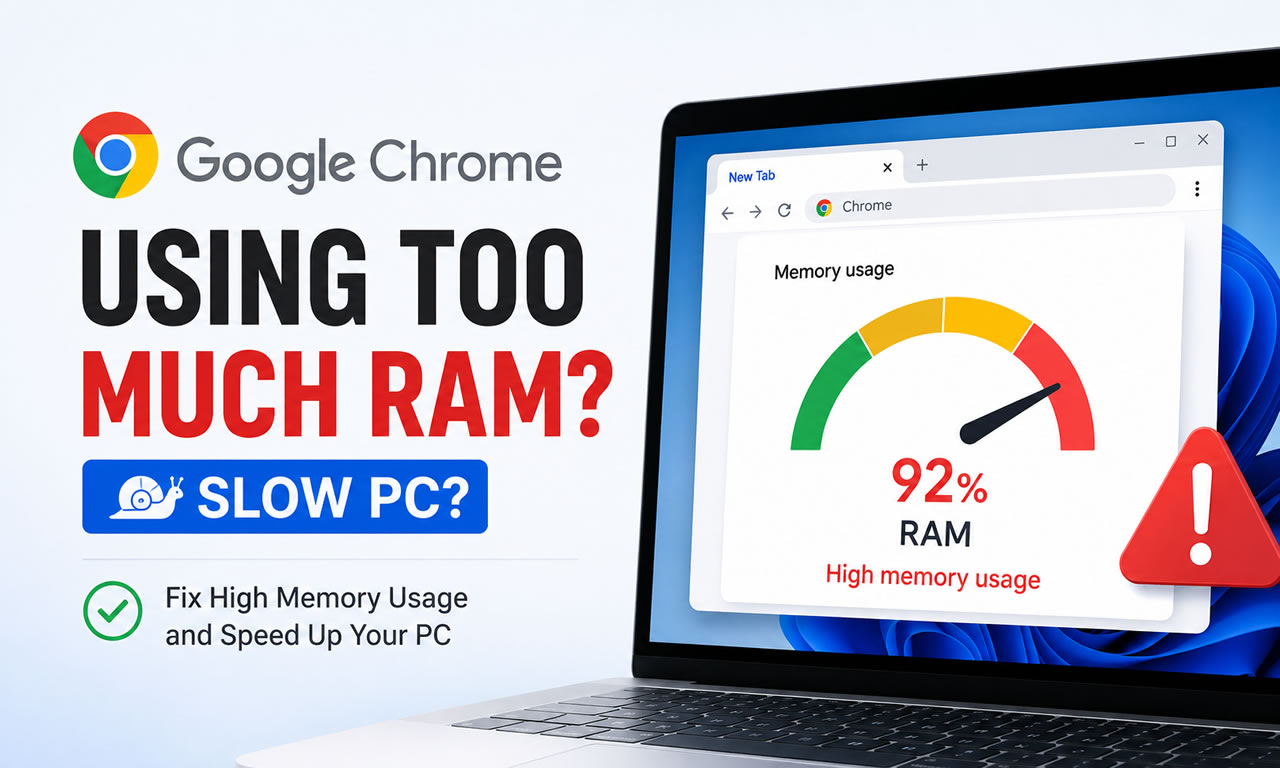
How to Fix Chrome Using Too Much RAM and Slowing Down Your PC

I have been a loyal user of Google Chrome since its inception, even though it is no longer the sole browser in my daily rotation.

The turning point for me came when I transitioned from a high-end desktop workstation to a portable laptop for my everyday computing needs.

That switch instantly validated the widespread complaints about Chrome being a notorious "RAM hog" that drags down overall system performance.
How to Fix Chrome Using Too Much RAM and Slowing Down Your PC

I was thrilled when Google finally rolled out a native solution to tackle this memory consumption issue in 2023.

As soon as I updated to Chrome 110, I flipped the switch in my settings and immediately experienced a massive performance boost.

By simply changing one specific setting, I successfully stopped Chrome from suffocating my laptop's resources.

Why Was Chrome Eating Up My Laptop's RAM?

My laptop doesn't come close to matching the raw power of my old desktop, but portability was a non-negotiable requirement for my workflow.

I could manage perfectly fine, provided I didn't open an absurd number of tabs at once—which, admittedly, was a rare occurrence.

However, the moment I started piling up tabs, my laptop would become painfully sluggish, leaving me with no choice but to start closing them.

The system lag was so severe that even the simple act of closing a tab would trigger a frustrating delay.

I had already stripped my browser of resource-heavy extensions, so the excessive open tabs were the sole culprit behind the bottleneck.

While every active tab demands a slice of your system's RAM, the exact amount depends heavily on the content being rendered.

The duration a tab has been left open in the background also plays a significant role in memory retention.

Since my workflow involves extensive online research, I frequently keep dozens of tabs open simultaneously, ranging from ad-heavy text articles and YouTube videos to resource-intensive design tools like Figma.

Combined, these tabs devour available RAM, leaving the rest of my operating system gasping for memory.

Whenever I tried to launch a desktop application on top of this, the spinning blue loading cursor would linger indefinitely, signaling a completely stuck background process.

In many of these frustrating scenarios, a hard restart was the only way to unbrick my system.

The Single Chrome Setting That Rescued My PC

Upgrading to a more powerful laptop might have offered temporary relief, but it was never a sustainable, long-term fix.

Instead, I waited for Google to address the root cause, and they ultimately delivered with the built-in Memory Saver feature.

Activating this feature is incredibly straightforward. Simply click the three-dot menu in the top right corner, navigate to Settings, select Performance from the left sidebar, and toggle on Memory Saver.

The mechanism behind this feature is brilliantly simple: it automatically deactivates tabs you aren't actively viewing, instantly freeing up RAM for your current tasks and other applications.

This ensures your computer's limited resources are prioritized for what actually matters. The trade-off is that when you click back to an inactive tab, it requires a brief reload instead of appearing instantly.

By default, Chrome applies a "Balanced" memory savings profile. This means tabs are put to sleep after an optimal, dynamically calculated period of inactivity.

Rather than relying on a rigid timer, the algorithm evaluates your browsing habits and current system load. For the vast majority of users, this Balanced setting is the perfect sweet spot.

Chrome also offers Moderate and Maximum modes at opposite ends of the spectrum. Moderate waits longer before freezing tabs, while Maximum aggressively puts them to sleep almost immediately.

I personally stick with the default Balanced option because it brilliantly balances aggressive RAM conservation with seamless accessibility. Nobody wants to wait several seconds for a page to reload every time they switch tabs.

Take Back Control of Your Laptop's Performance

While a cluttered tab bar is a primary suspect in RAM exhaustion, it is rarely the only factor slowing down your machine.

Outdated browser versions, ad-infested websites, and poorly optimized extensions can severely degrade both Chrome's responsiveness and your PC's overall health.

I maintain a strict policy of keeping my extensions minimal and my browser updated, but I have zero control over how many tracking scripts or autoplay videos a website decides to load.

This unpredictable web environment is exactly why I rely entirely on the Memory Saver feature to silently manage my laptop's resources in the background.
Posted in Browser Extensions | Leave a comment

Readfrog Review: Free Bilingual Translator & Immersive Translate Alternative

Readfrog is a free, open-source browser extension that supports major browsers and offers practical features like bilingual webpage translation and YouTube subtitle translation. Users can freely use traditional machine translation services like Google and Microsoft, or connect to various AI services such as Gemini, DeepSeek, and OpenAI.

Readfrog Review: Free Bilingual Translator & Immersive Translate Alternative

What is Readfrog?

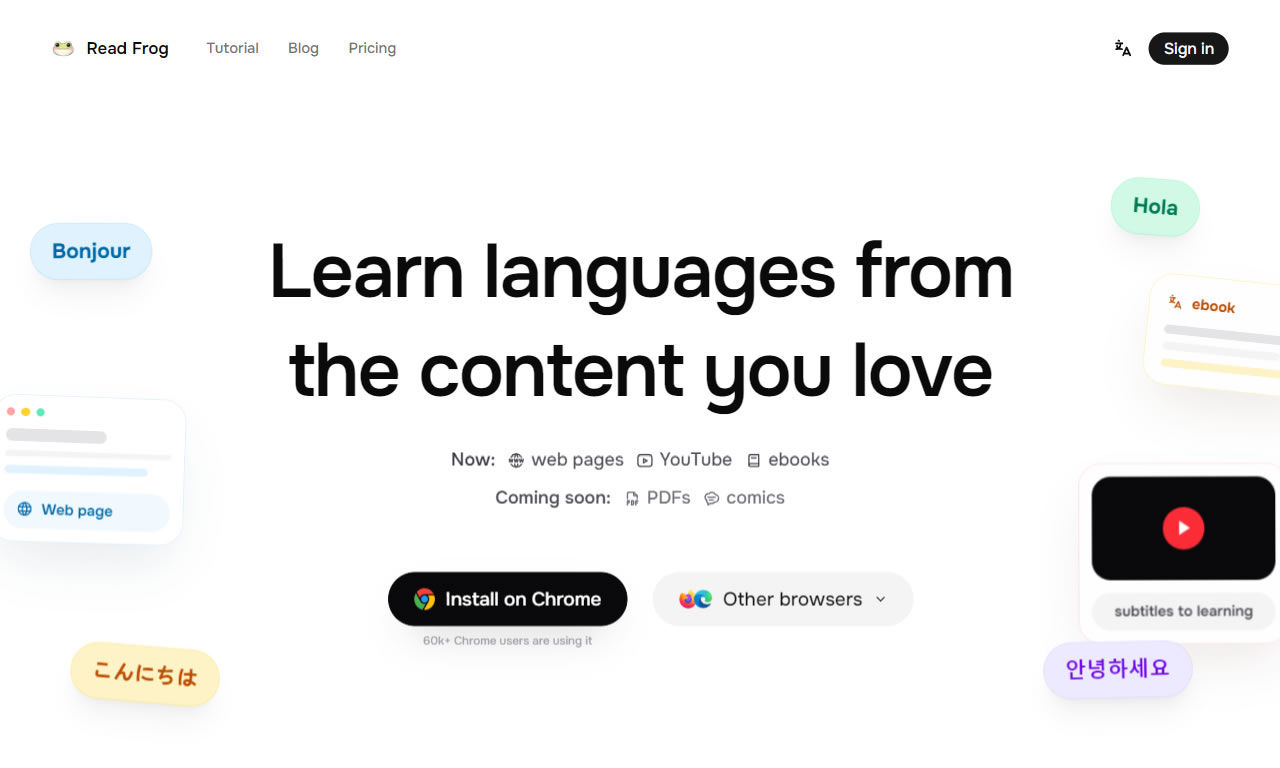
The tool I'm recommending in this article, "Readfrog", is a free browser extension. It supports Chrome, Edge, and Firefox, and is currently the most recommended open-source project to replace Immersive Translate. It can quickly translate web pages, YouTube video subtitles, input text, or perform text-to-speech. With its floating button, toolbar, or right-click menu, it's perfect for students, researchers, or international professionals.

If you frequently browse foreign websites, Readfrog will come in handy. It's more user-friendly and provides more accurate, readable translations than built-in browser tools. Especially if you've used Immersive Translate before, you'll notice the designs are quite similar.

Features and Benefits of Readfrog

Readfrog is an AI-powered translator that can connect to over 20 AI providers (including OpenAI, Gemini, DeepSeek, Anthropic Claude, xAI Grok, and more). If you prefer not to deal with complex setups, you can also directly choose standard machine translation tools like the free basic options from Google Translate, Microsoft Translator, and DeepLX.

In a nutshell, the main advantage of Readfrog is that it "allows original text and translations to be displayed in an interleaved format", which helps with comprehension by letting you compare the original text as you read. Furthermore, connecting to AI tools for translation significantly improves the quality. If you're tired of the output from machine translation or want to try using AI for your translation tasks, you should install the Readfrog extension. It's completely free and highly recommended for all readers.

Website Info

Website Name: Readfrog

Website Link: https://www.readfrog.app

How to Use It

Download and Install the Extension

Readfrog offers extensions for Chrome, Edge, and Firefox.

Simply visit the respective web store to install it on your browser.

Initial Native Language Setup and Basic Navigation

Like Immersive Translate, Readfrog has a setup process after installation. The first step is to set your native language.

Then, follow the on-screen instructions to translate a webpage using the Readfrog extension button in your browser's top-right corner. This serves as a quick tutorial.

Finally, it will show that the basic setup for Readfrog is complete. Click "Finish" to end the tutorial. For more details, you can refer to the advanced manual.

Select Translation Mode and Service

Readfrog is very simple to use. Just click the icon in the top-right corner of your browser to start translating, like most translation tools.

Before translating, you can pre-select the translation mode and service. It supports AI translation (with OpenAI, DeepSeek, Tensdaq, and Gemini available by default). If you don't want to pay for translation, you can also choose free tools like Google Translate, Microsoft Translator, and DeepLX.

From Readfrog's options, you can also pre-configure settings for webpage translation, video subtitle translation, selected text translation, input translation, or the Dictionary function.

Connect Your Own AI API Keys and Adjust Styles

To use AI translation, first select "API Providers" from the left-hand menu. You'll see various AI services. Follow the instructions on the page to enter your API Key to complete the setup (click the "How to set up?" link in the top-right corner to go to the corresponding page).

After setup, go back to the previous "Function Provider" settings and assign the corresponding translation function to the AI translation service.

If you want to adjust the display style of the translation, you can find the options in Readfrog's "Translation" settings. However, I find the default style quite good; the text color and spacing don't interfere with reading and are distinct from the original text.

As for the floating button, toolbar, or right-click menu that appears on the right side of the browser, if you find them visually distracting, you can disable or turn them off in the "Floating Tools" options. I prefer to just click the function button in the top-right corner to translate. I also keep the right-click menu translation function. You can adjust these according to your own habits.

Example of Webpage Bilingual Translation

Here is an example of using Readfrog for translation. You can see that the translation is displayed below the original text, in segments, allowing you to refer to the original at any time while reading. Compared to translating all content into a single language, this presentation is much better for reading and saves you from constantly switching between the original and translated text.

Bilingual Translation for YouTube Subtitles

Another highly recommended feature is that Readfrog also supports YouTube subtitle translation, and similarly, the translation is displayed above the original text. This is very useful for users who watch foreign videos. It's simple to operate: after installing the extension, a "Readfrog" button will appear in the bottom-right corner of the YouTube video player. Click it to turn on the subtitle translation function. It also has features to download translated or original subtitles.

Posted in AI, Browser Extensions, Online Translation | 2 Comments