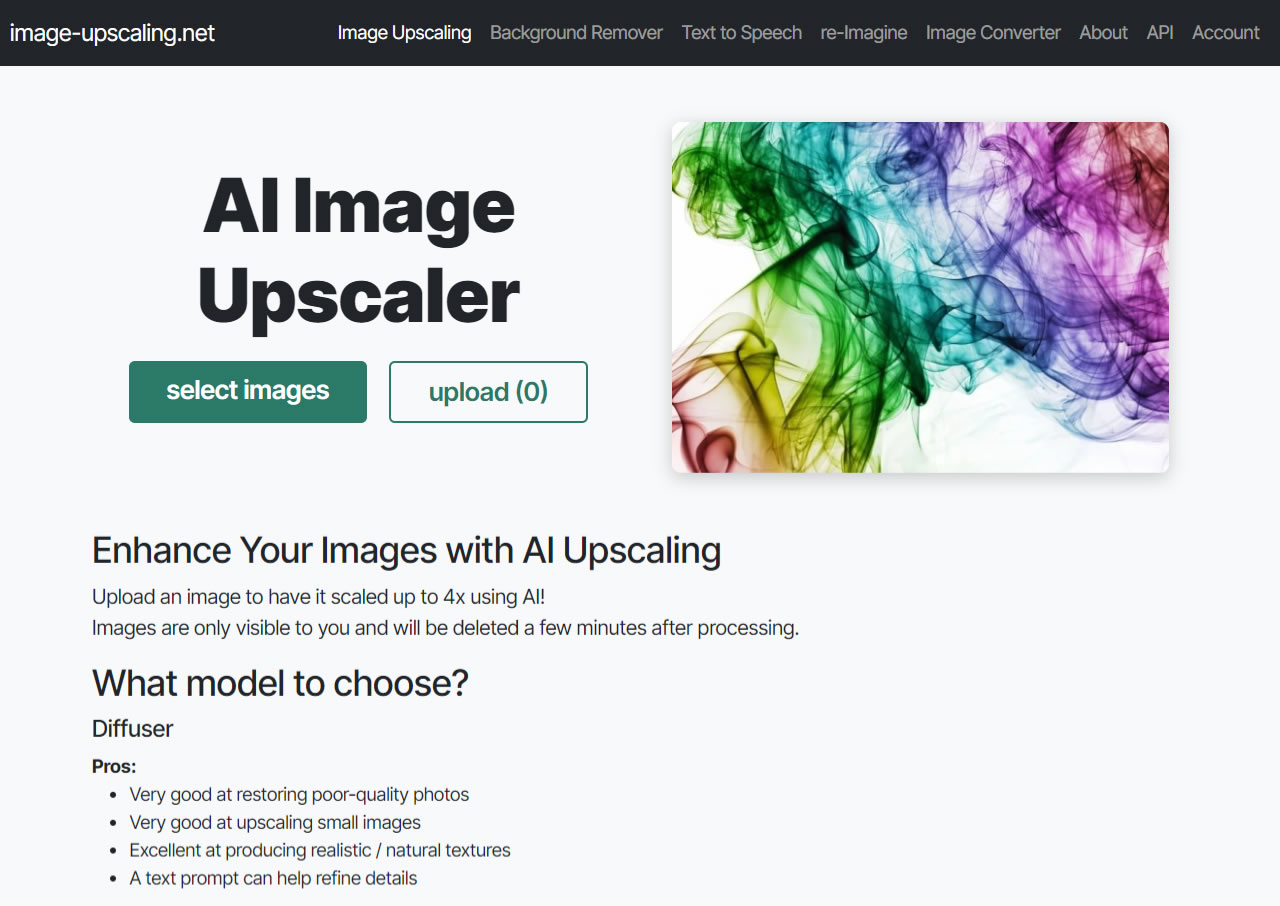
Today, I want to introduce you to Image-Upscaling, a powerful free AI image upscaler that can enlarge your photos by up to 4x using advanced AI technology. As we know, simply resizing raster images usually results in distortion and blurriness. However, this tool uses sophisticated processing to redraw your images in seconds, increasing their size while maintaining high resolution. It’s particularly effective at sharpening low-resolution photos and enhancing clarity. Best of all, you don't need to download or install any software—everything is done right in your browser.
Support for Multiple Formats and Batch Processing
Image-Upscaling handles various image types, including paintings, AI art, anime, and everyday photos. It supports common formats like PNG, JPG, and WebP and can upscale images up to a resolution of 4096*4096. The tool also excels at restoring low-res photos and fixing blurry faces. A standout feature is its ability to process images in batches, allowing you to upscale multiple files at once and download them as a single package.
According to the website, the service is completely free for small-scale use with no paywall and no sign-up required, though there is a daily free quota.
Beyond upscaling, the Image-Upscaling website offers a suite of other free tools, including an online background remover, a text-to-speech converter, a "re-Imagine" feature for style transfer, and an image format converter. While the interface is more minimalist compared to other services, the results are impressive, delivering high-quality edits without complicated settings.
Website Name: Image-Upscaling
Website Link: https://image-upscaling.net/upscaling/en.html
How to Use It
When you open the Image-Upscaling website, the AI image upscaler is the default tool. Simply click "Select Images" to choose the files you want to enhance.
Next, you'll see a preview of your image along with options to choose an AI model, set the upscale factor, and adjust the "Creative hallucination" setting. In short, this feature boosts the AI's creativity to improve image quality, detail, and resolution. However, setting it too high might introduce significant deviations and make the image look unnatural.
If you're working with severely blurry or noisy images, moderately increasing the "Creative hallucination" strength can be very helpful for restoration.
Image-Upscaling provides four different AI models (Diffuser, Diffuser-lite, General, and Plus), each with unique characteristics. Here is a quick summary:
| Feature | Diffuser | Plus | General |
|---|---|---|---|
| Core Strength | Restores very poor quality; natural, realistic results | Optimized for art & drawings; supports transparent backgrounds | Ultra-large output (up to 16K) |
| Resolution Limit | 6MP (4MP for Diffuser-lite) | 32MP | 256MP (16K) |
| Best For | Restoring damaged old photos, high-noise images | Illustrations, digital art, cutout materials | Large posters, ultra-high-res artwork |
| Processing Speed | Slower | Fast | Fast |
| Cost | Higher | Cheaper | Cheaper |
| Transparency | Not supported | Supported | Supported |
After selecting your model and any corresponding options, click "Upload" to start the cloud processing.
Wait for Processing and Download
This process takes a little time. Image-Upscaling doesn't provide many progress updates, so just keep the tab open. The page will refresh automatically once it's done.
Finally, click the "Download All (zip)" button to get all your images in a single compressed file. Note that the images are automatically deleted after one hour, so there's no need to clean up manually. According to the site, your images are uploaded to a server in Germany and are used solely for short-term processing and storage.
Use AI Background Remover for Automatic Cutouts
Another great tool is the "AI Background Remover." You can switch to it from the top menu. The process is just as simple: click "Select Images," choose your files, and hit "Upload." The entire background removal process is automated with no settings to adjust.
Once finished, you can click to save the image with the background removed. Keep in mind that results can vary, so it's always good to test it with your own photos.
Batch Image Conversion and Quality Adjustment
Lastly, there's the Batch Image Converter. This tool lets you convert images to PNG, JPEG, or WebP formats and even adjust the quality for JPEG and WebP outputs. A special feature of this converter is that it supports most image formats (like JPG, PNG, GIF, BMP, etc.) and performs all conversions locally in your browser, so your files never leave your device.
Conclusion
While new AI image tools pop up all the time, Image-Upscaling stands out. Although its interface is a bit plain, its feature set is surprisingly comprehensive!
In my tests, the upscaling function handled low-resolution photos very naturally, and the "Creative hallucination" parameter offers a lot of flexibility. The ability to process and download multiple images at once without needing to sign up or register is a huge time-saver. For anyone who needs to quickly improve the quality of their image assets, this is a highly capable and efficient free tool.

这篇评测写得很详细,特别是四个模型的适用场景对比很实用。对于模糊老照片或低分辨率图片,这类AI放大工具确实比普通拉伸效果好很多。如果不想单独记多个小工具,也可以留意一下DeepAI这类综合平台,里面也集成了图像生成和编辑相关的功能,可以一次搞定多种需求。
Thanks for your great comment! I'm glad you found the comparison of the four models helpful. I actually plan to write a review specifically on DeepAI in the near future, so stay tuned!
The batch processing and 4x upscaling here are genuinely useful, especially for restoring old, blurry photos without needing to install anything. I found the "Creative hallucination" slider interesting—it works well for noisy images, but you have to be careful not to push it too far or the results look unnatural. For quick, no-sign-up fixes, this is a solid option. If you're already experimenting with AI-generated visuals, pairing this with a good AI music studio can really streamline your creative workflow, since both let you produce polished assets directly from prompts.
The breakdown of the four AI models is especially helpful—knowing that Diffuser handles damaged photos while Plus supports ultra-large output makes it easier to pick the right tool without trial and error. The tip about keeping “Creative hallucination” moderate is also a practical warning, since overdoing it can make results look unnatural. For anyone exploring visual concepts beyond photo restoration, an AI tattoo generator can be a fun way to turn rough ideas into design inspiration.
The emphasis on controllability is well placed. Clear instructions about what should stay fixed make visual outputs far easier to compare. That usually leads to better decisions.